

A persistent terminal with a built-in AI agent

A terminal that keeps your place, and an agent that shares it

Astrum runs inside the terminal you already use, locally or over SSH. Close the window and everything keeps running; come back and it is all there. Click anything, split panes, and ask an agent that works in the same shell you do, where you can watch it and take over.

curl --proto '=https' --tlsv1.2 -fsSL https://raw.githubusercontent.com/robert-mcdermott/astrum/main/install.sh | sh

Version 0.11.0, open source. One file, nothing else to install. macOS on Apple silicon, Linux on x86-64 and ARM64.
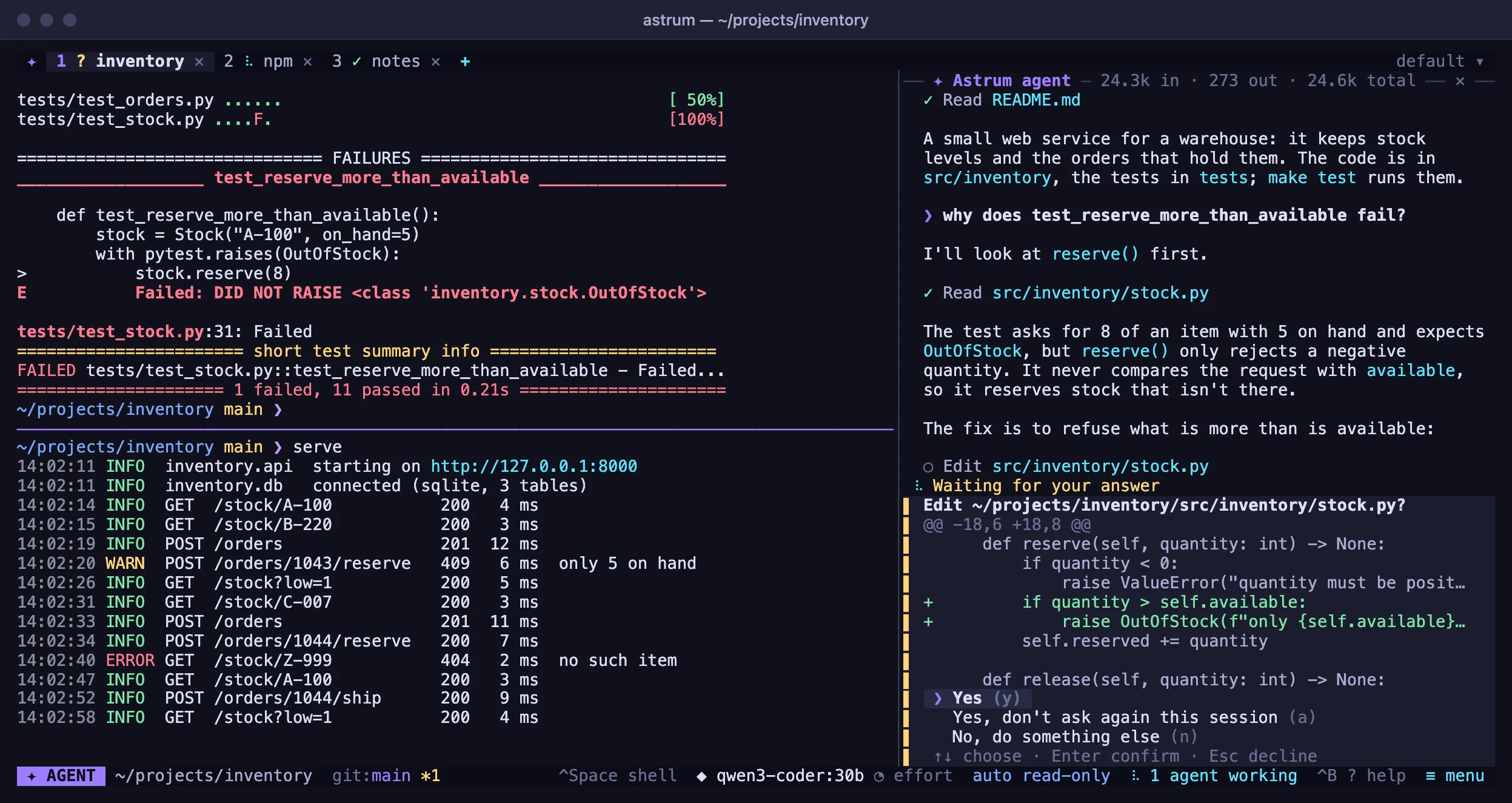
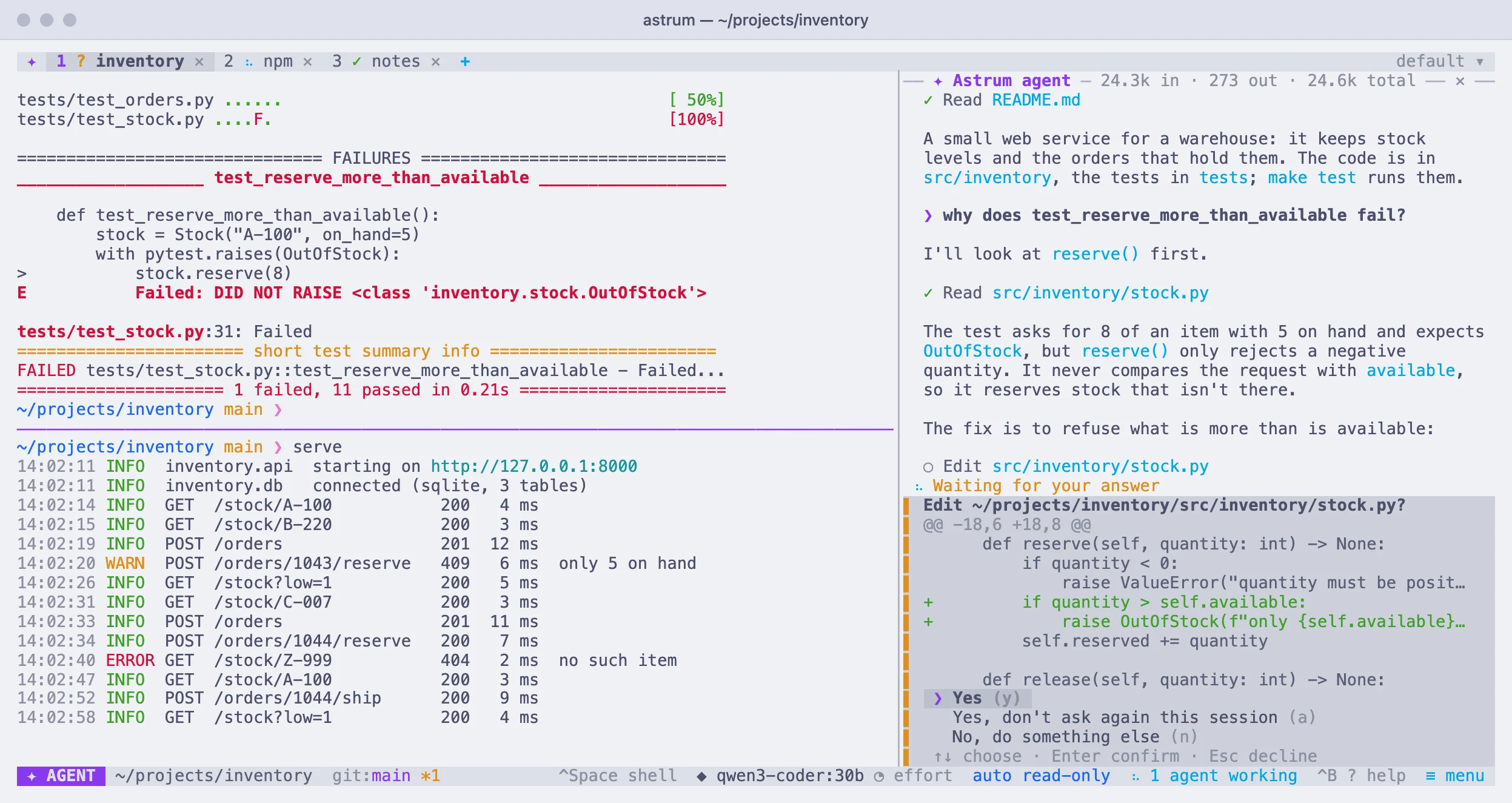
Astrum in a terminal window: three tabs, each marked with what its agent is doing; on the left a failed test run above a server's log; on the right the agent explaining the failure and asking to make the fix, shown as a diffAstrum in a terminal window: three tabs, each marked with what its agent is doing; on the left a failed test run above a server's log; on the right the agent explaining the failure and asking to make the fix, shown as a diff
Two panes on the left, the agent on the right, and an agent in each of three tabs

What Astrum does

Astrum is a session manager for the terminal: tabs, panes and shells that keep running in the background, with an AI agent built in. It changes nothing about your shell, your prompt or your colors.

Feels like your own shell

Run astrum and you are in your usual zsh, bash or fish, with your own prompt and colors, plus a tab bar.

Sessions survive

Close the window and come back later: every tab, running program and scrollback is still there. After a reboot the tabs, splits and directories come back too.

Made for the mouse too

Click tabs, + and ✕, drag dividers, scroll with the wheel, right-click for a menu, and find everything else in ≡ menu. Keys are there for people who want them.

Room to work

Split a tab into panes, search the scrollback, open links, see the pictures programs print, and look at one session from several windows.

Other machines, kept

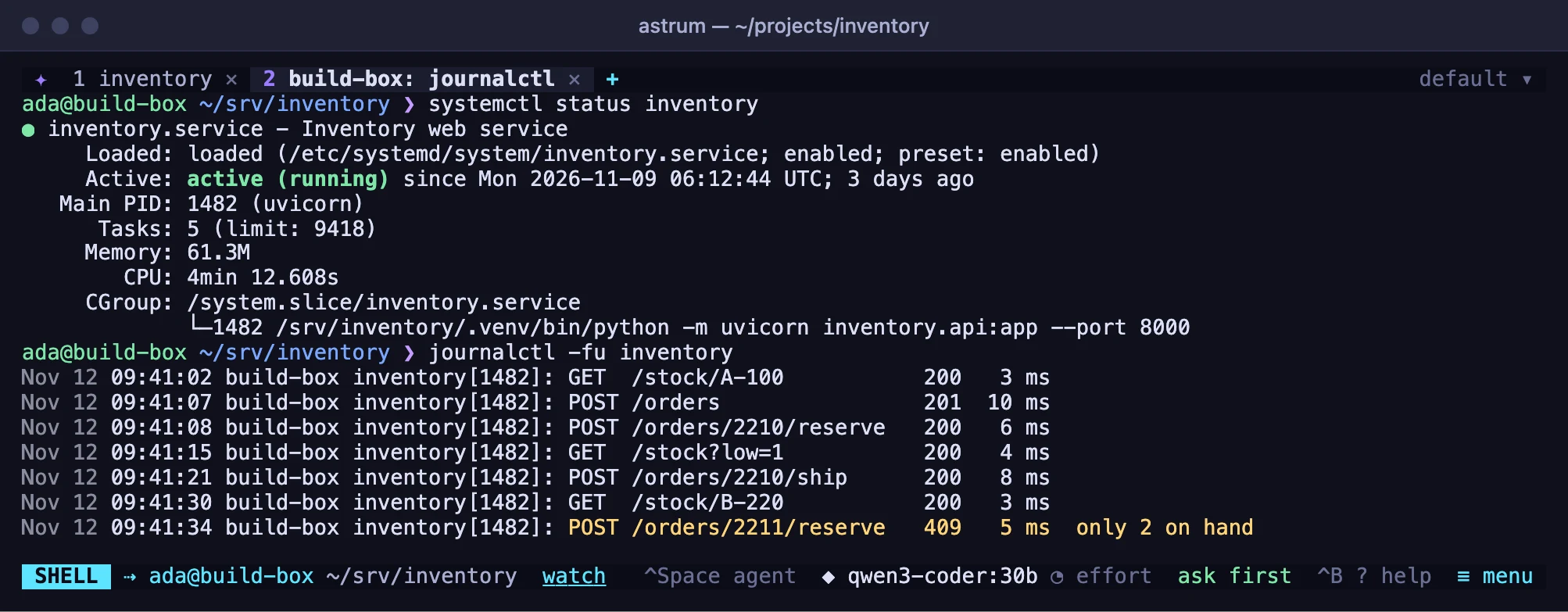
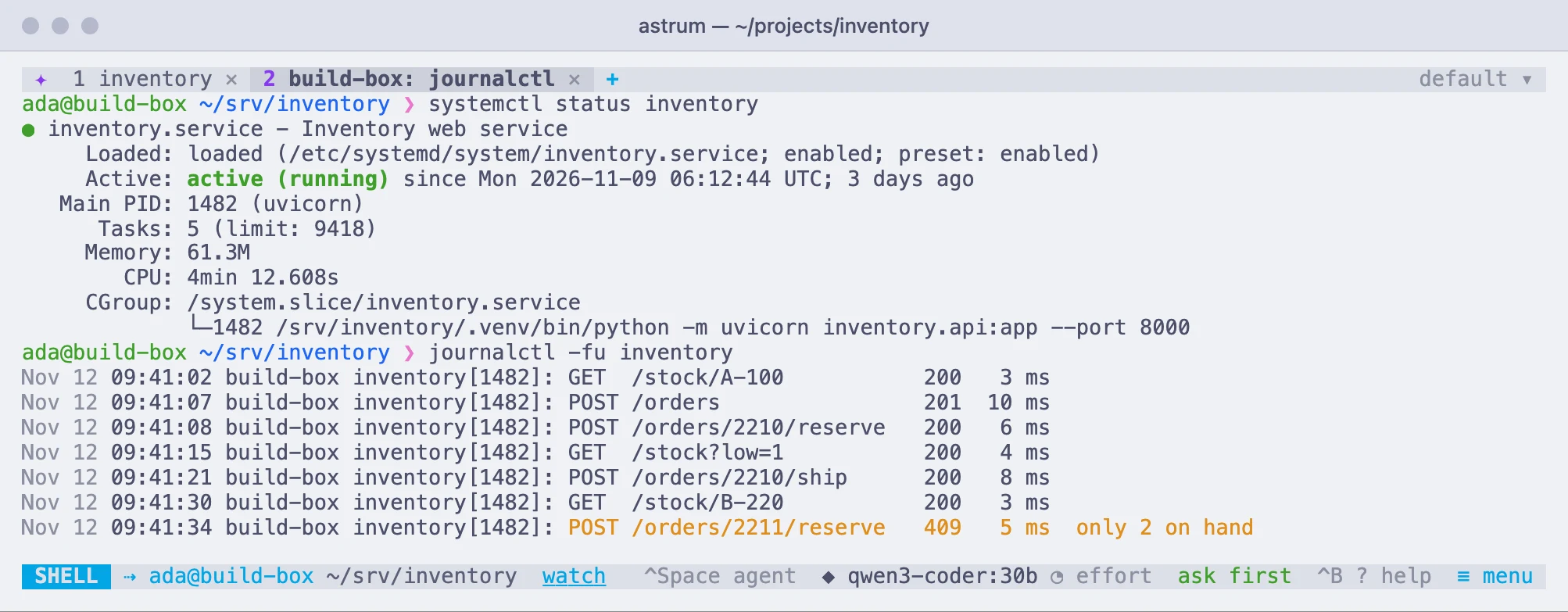
Open a tab on a server over your own ssh: its shells stay there, so a dropped connection or a closed laptop loses nothing.

Any model

Ollama and any OpenAI-compatible endpoint, Anthropic, and Amazon Bedrock. Switch with /model; keys are kept in the system's keychain.

The agent

It works in your shell, where you can see it

Press Ctrl+Space or click the SHELL chip and ask. The agent reads what is on screen, proposes commands and runs them in your real session. You see each one before it runs, and you decide how much it may do on its own.

  • Ask first, run read-only commands by itself, or work on autopilot
  • Commands you always allow, and commands it may never run
  • Keys and passwords hidden from the model before anything is sent
How the agent works →

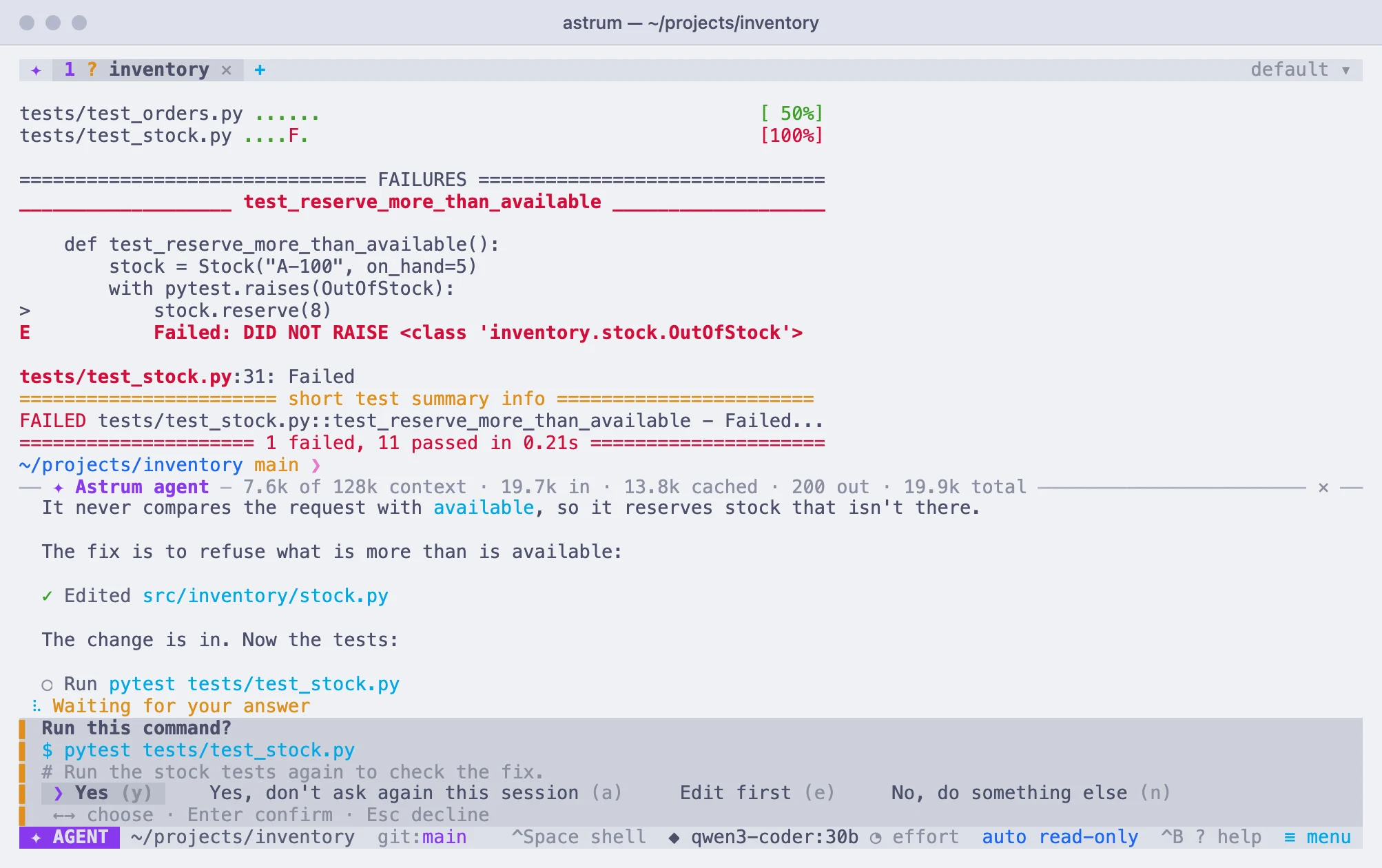
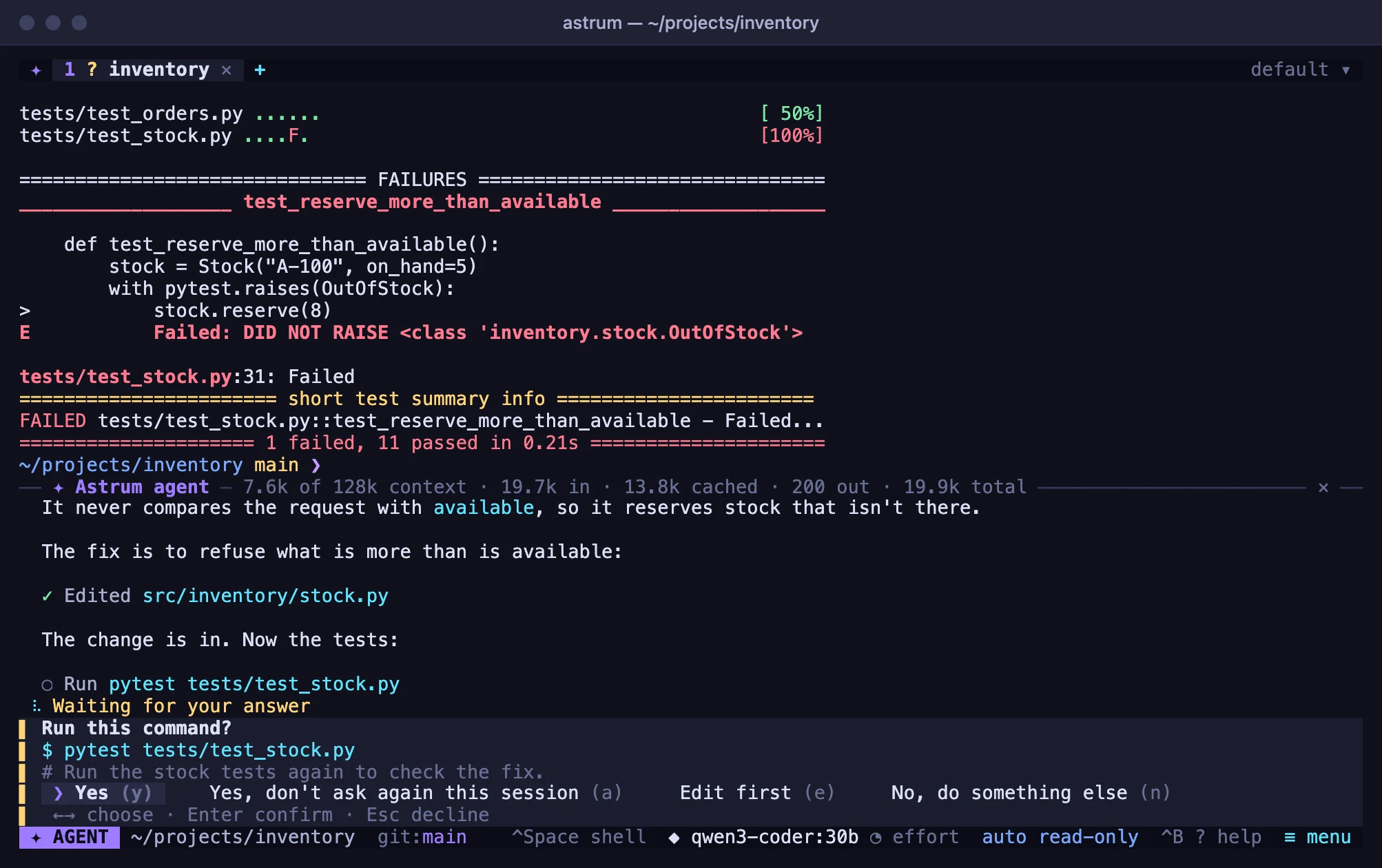
A failed test run in the shell, and below it the agent panel asking "Run this command?" for pytest, with the choices Yes, Yes don't ask again this session, Edit first, and No do something elseA failed test run in the shell, and below it the agent panel asking "Run this command?" for pytest, with the choices Yes, Yes don't ask again this session, Edit first, and No do something else
The agent asks before it runs a command, unless you have said it need not
At the prompt

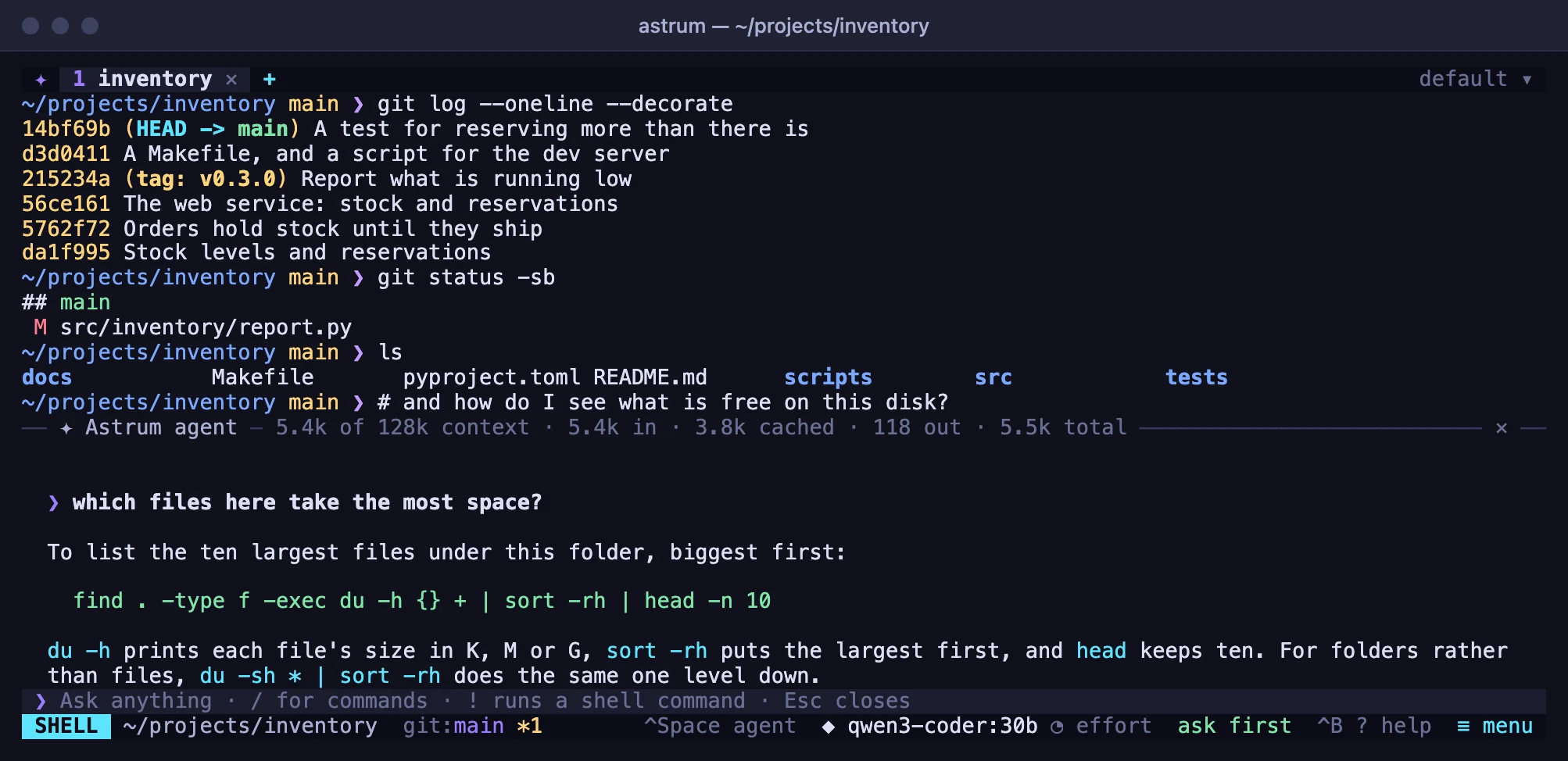
Ask without leaving the shell

Type # and a question at your prompt and the agent answers beside it. When a command fails, click explain or fix in the status bar; when one is taking long, watch has the agent keep an eye on it.
Asking from the shell →

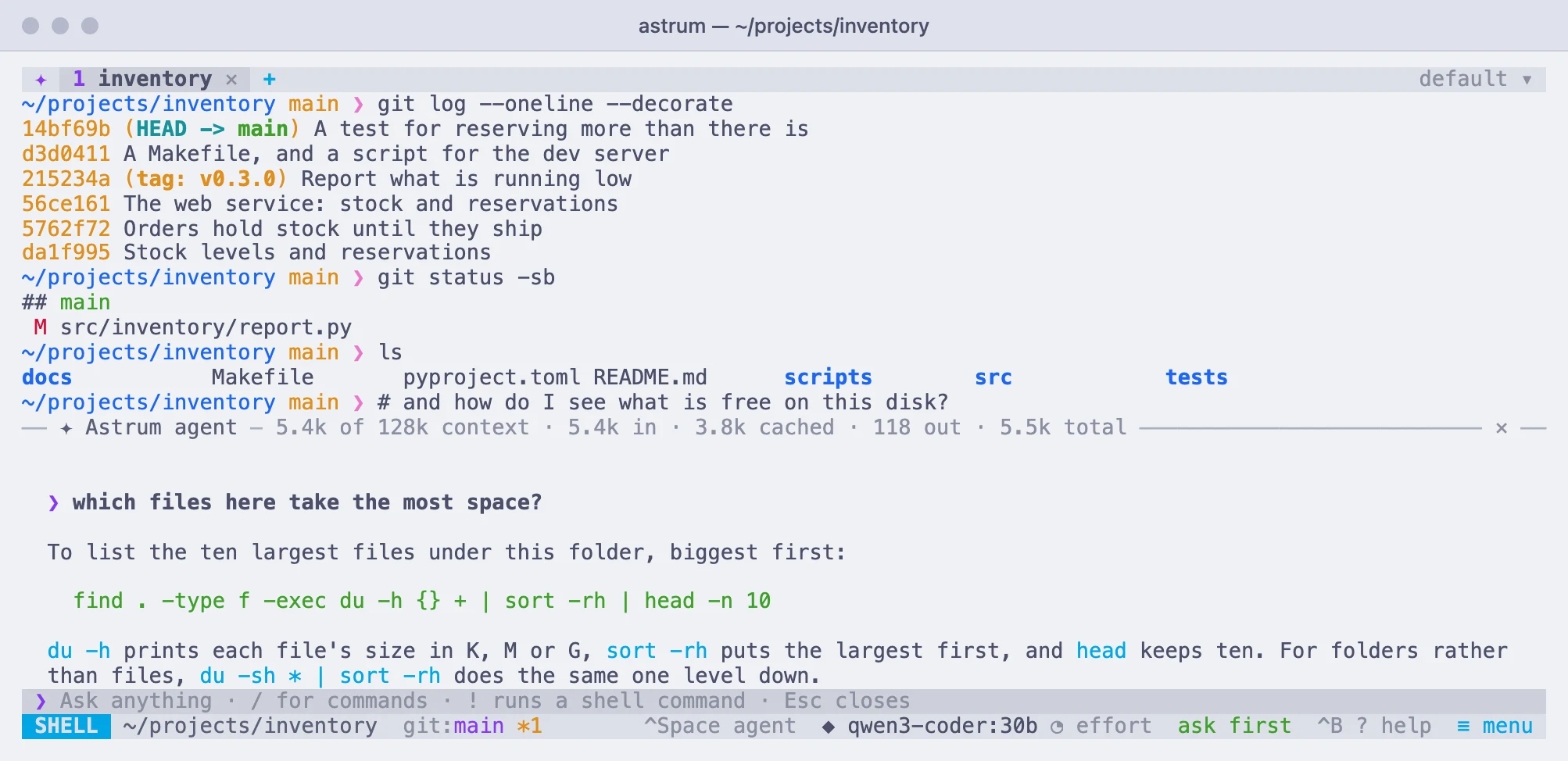
A shell with a question being typed at the prompt after a # sign, and below it the agent panel answering an earlier one with a command that lists the largest filesA shell with a question being typed at the prompt after a # sign, and below it the agent panel answering an earlier one with a command that lists the largest files
A question typed at the prompt goes to the agent
Several agents

Everything that needs you, at a glance

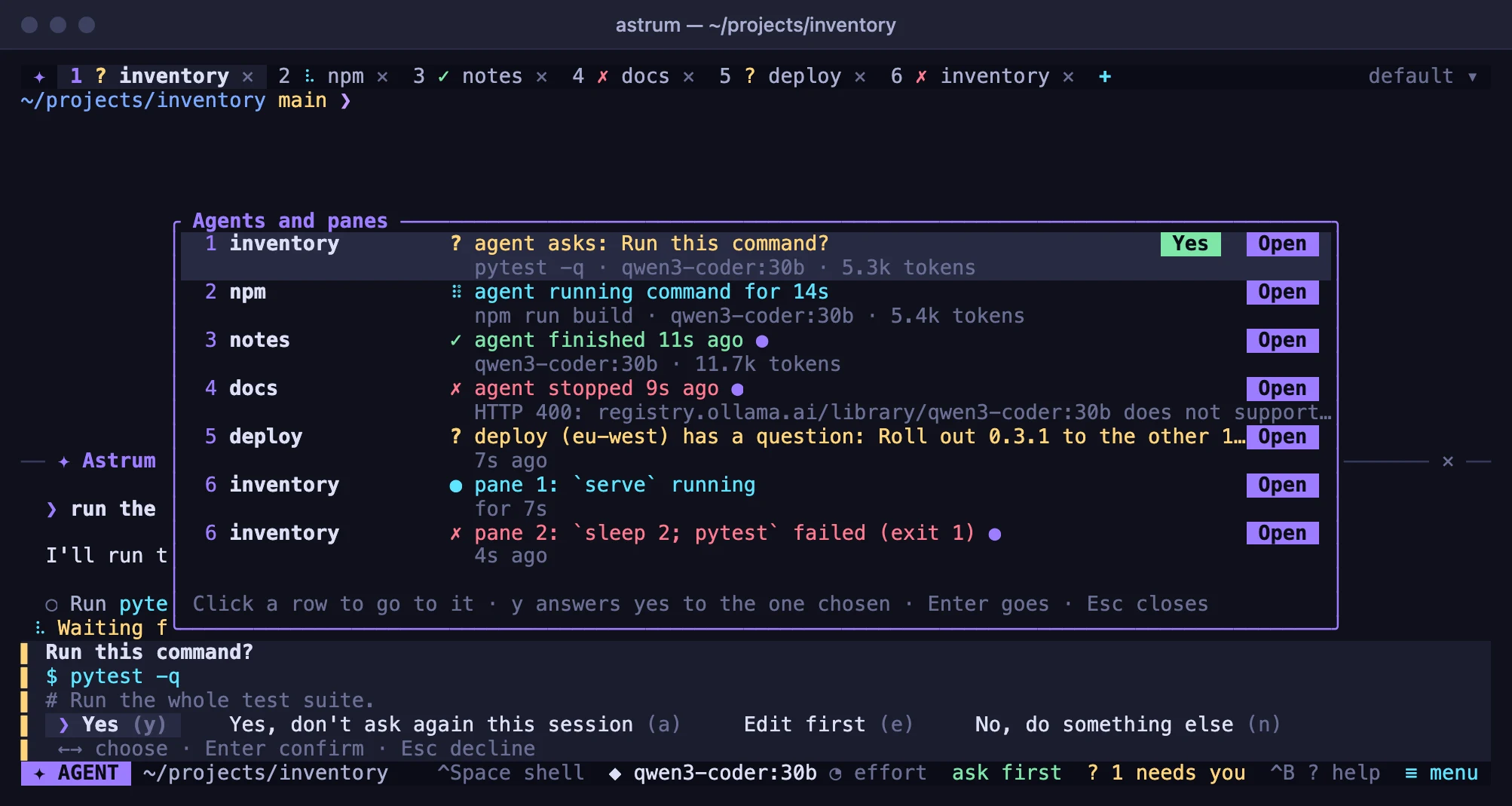
Each tab has an agent of its own, and any pane can say it needs you: a long build that ends, a bell, a program's notification, a coding agent run as a program that waits for your permission. One list shows them all. Answer from the list, or click to go there. Your terminal is told when something you cannot see needs you.
Several agents, and what needs you →

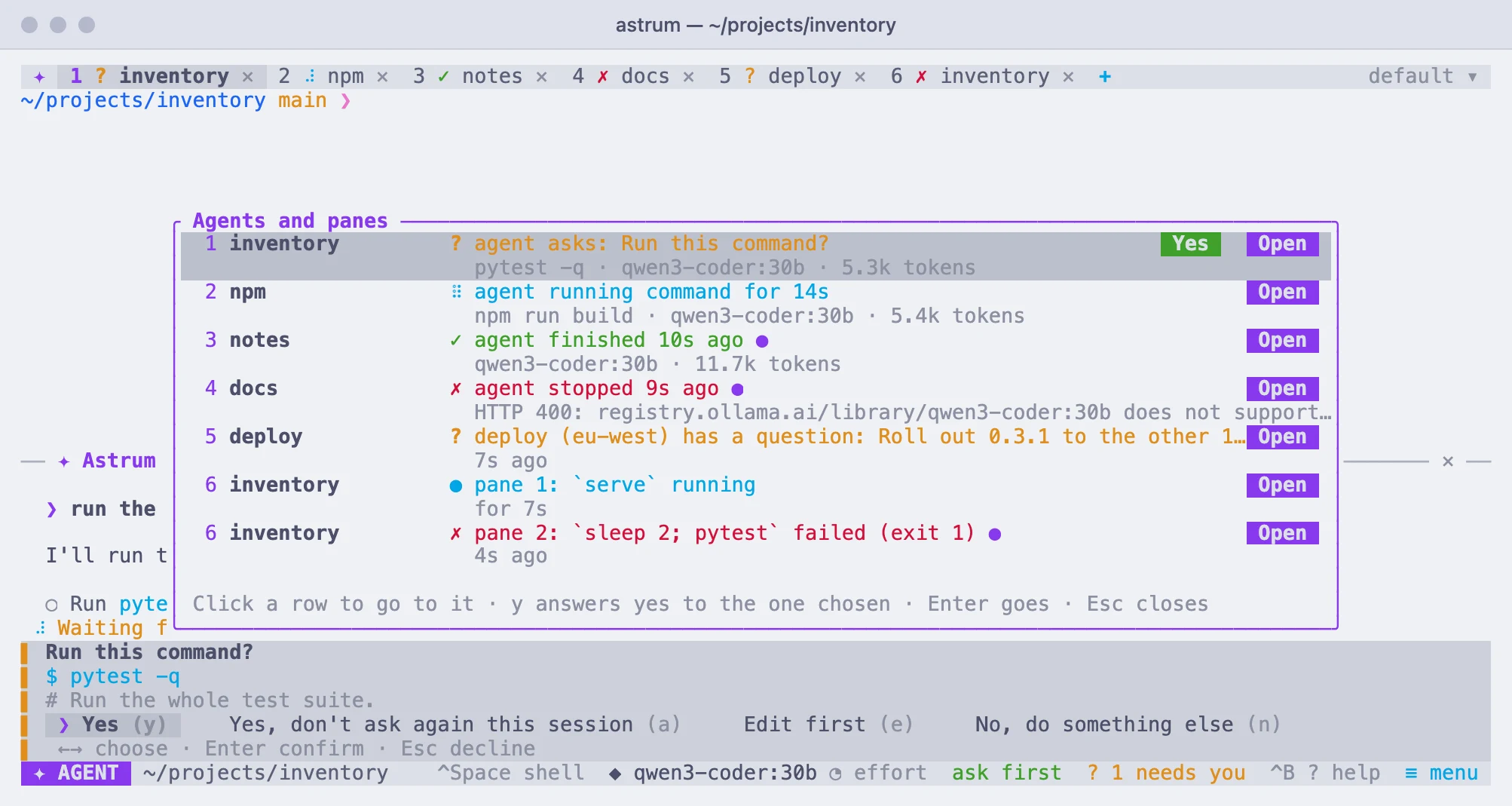
A list titled Agents and panes over a shell, a row for each thing: the agent in the inventory tab asking to run pytest, with a Yes button; one running a build; one finished; one stopped with the provider's error; a deploy program in another tab with a question, "Roll out 0.3.1 to the other 18 hosts?"; and in the last tab a service running and a test run that failed with exit 1. Each row has an Open buttonA list titled Agents and panes over a shell, a row for each thing: the agent in the inventory tab asking to run pytest, with a Yes button; one running a build; one finished; one stopped with the provider's error; a deploy program in another tab with a question, "Roll out 0.3.1 to the other 18 hosts?"; and in the last tab a service running and a test run that failed with exit 1. Each row has an Open button
Every agent, and whatever needs you, in one list
Tools

MCP servers and skills

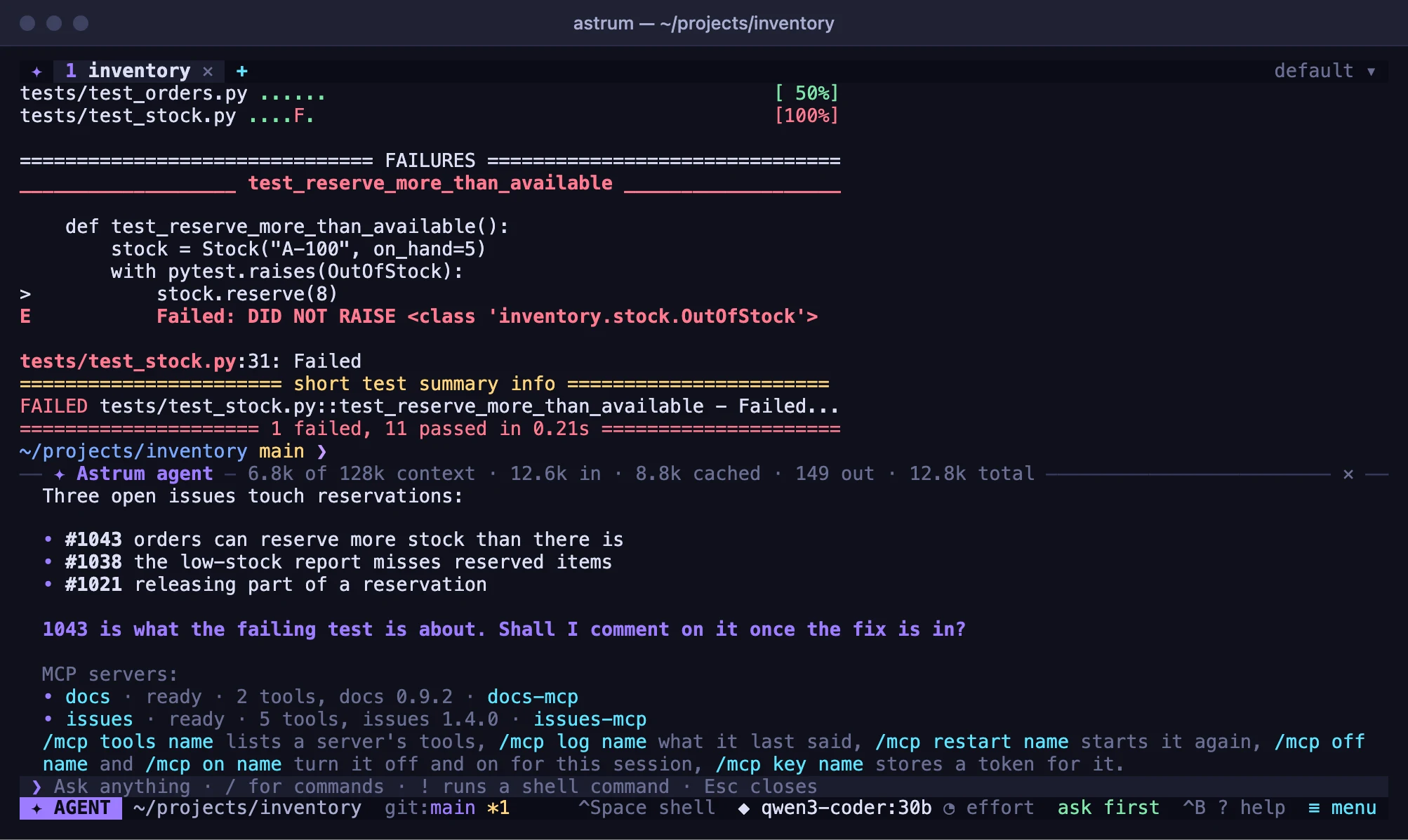
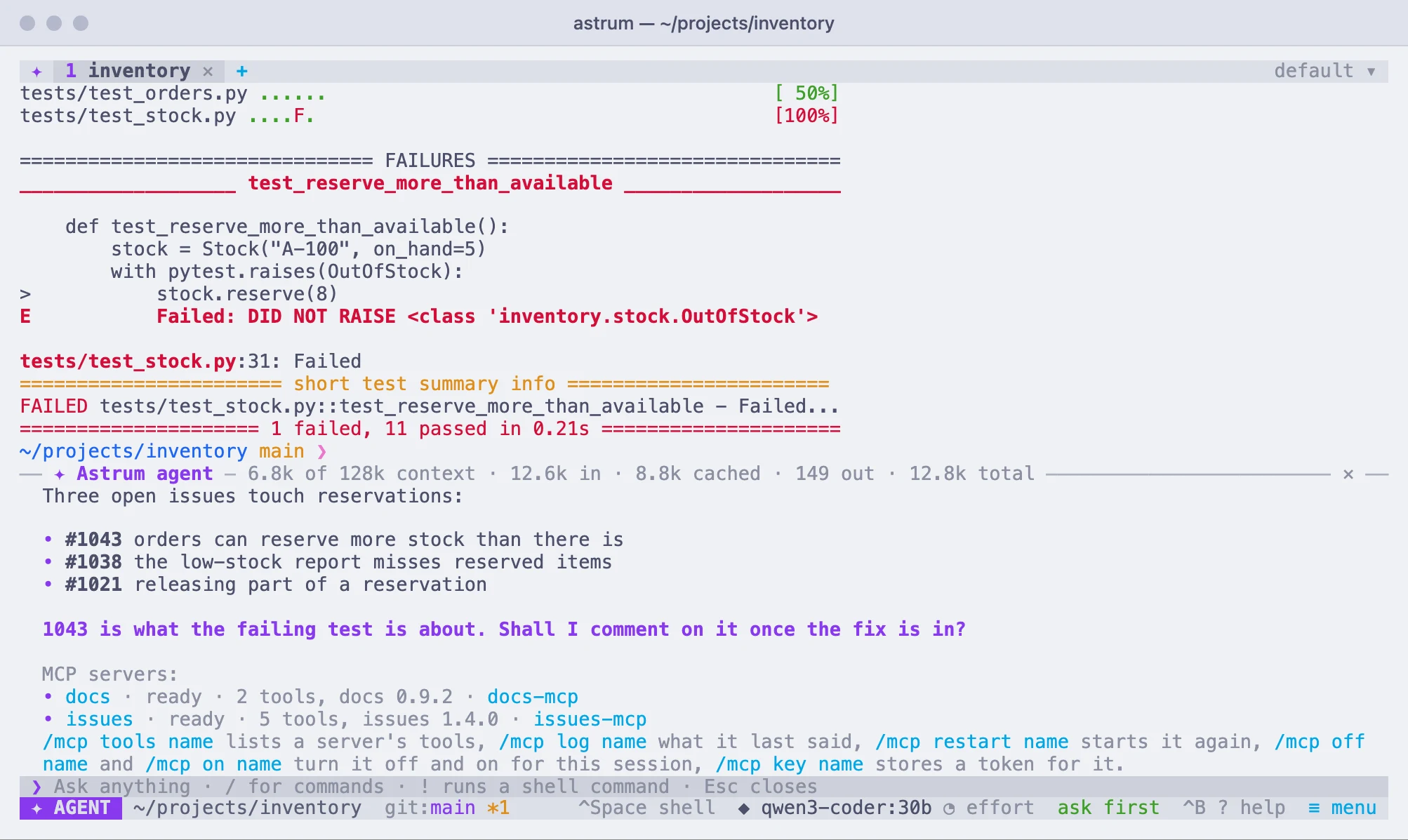
Give the agent the tools of MCP servers, on your machine or on the network, signing in with OAuth where a server asks. Skills, folders with a SKILL.md, teach it how your projects do things, and are loaded only when they fit.
MCP servers → · Rules and skills →

A failed test run in the shell, and below it the agent panel: an answer listing three issues found with an MCP server's search tool, then the list from /mcp of two servers, each ready, with its number of tools and its versionA failed test run in the shell, and below it the agent panel: an answer listing three issues found with an MCP server's search tool, then the list from /mcp of two servers, each ready, with its number of tools and its version
An answer made with an MCP server's tool, and what /mcp says of the servers
Tabs and panes

Split, drag, zoom, and keep going

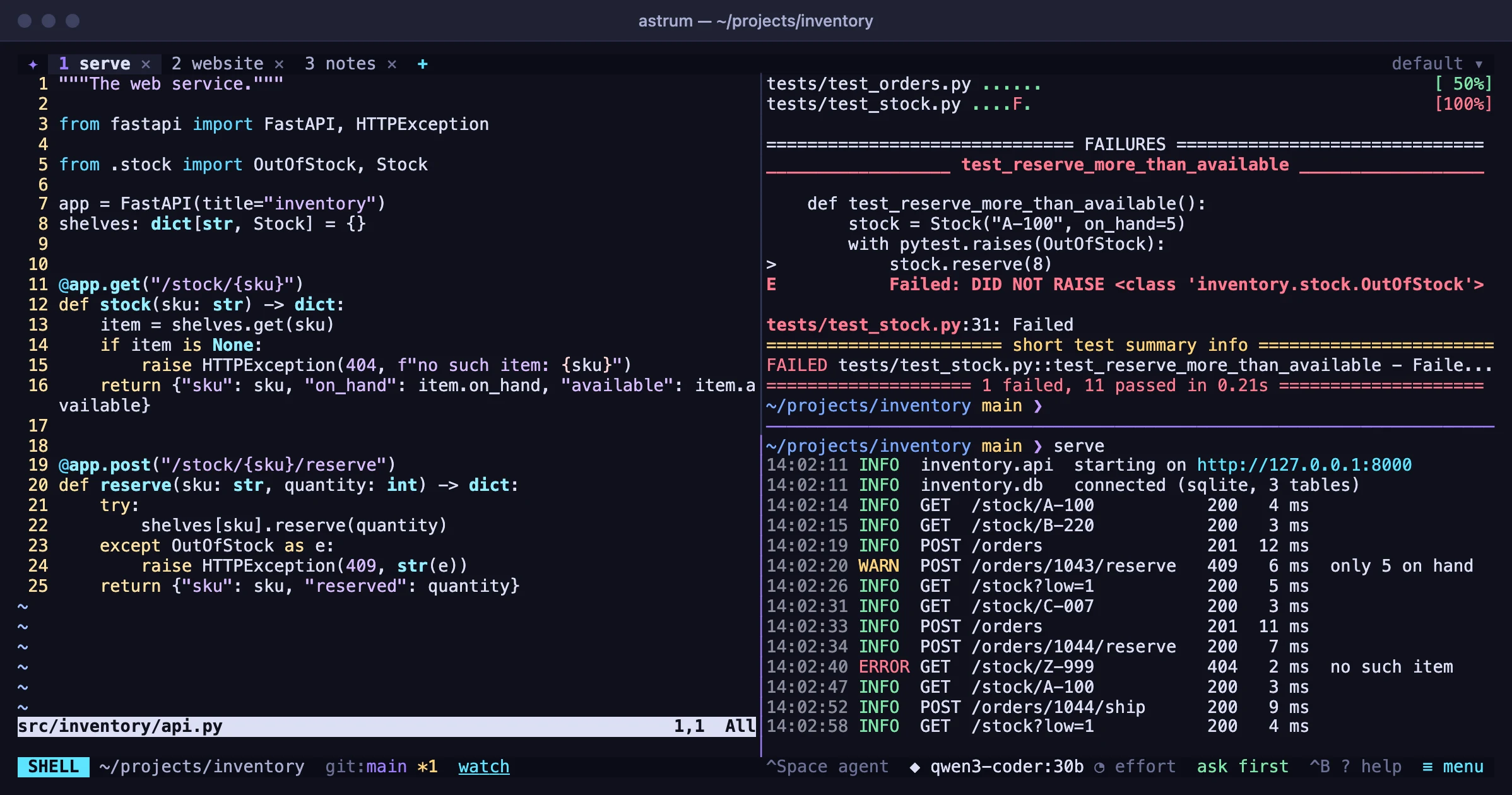
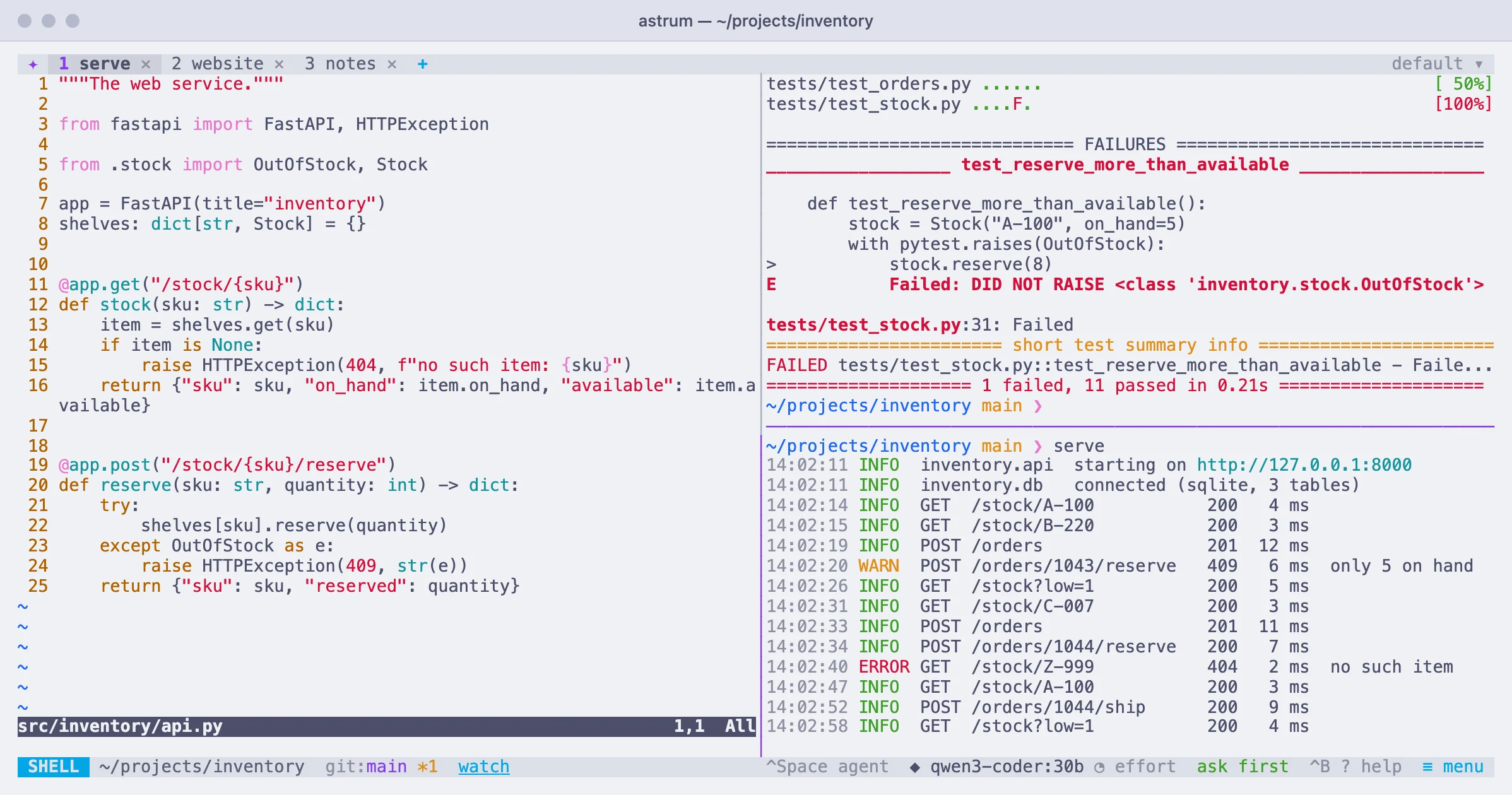
Split a tab side by side or one above the other, drag the dividers, zoom one pane to fill the tab and back. Find text in the scrollback, select to copy, and right-click a link to open it.
Tabs and panes →

A terminal window running Astrum with three tabs in the tab bar, the front tab divided into three panes: an editor with a source file on the left, a failed test run at the top right and a server's log at the bottom rightA terminal window running Astrum with three tabs in the tab bar, the front tab divided into three panes: an editor with a source file on the left, a failed test run at the top right and a server's log at the bottom right
A tab split into three panes
Other machines

A tab on a server, kept there

Open a tab on another machine over your own ssh. Its shells are kept on that machine, so a dropped connection, a closed laptop or a restart here loses nothing: the tab picks up where it was. The agent works there with all its tools.
Tabs on other machines →

Two tabs, the second named build-box: a shell on another machine showing a service's status and its log, and a status bar that says the shell is ada@build-boxTwo tabs, the second named build-box: a shell on another machine showing a service's status and its log, and a status bar that says the shell is ada@build-box
A tab on another machine: the tab bar and the status bar say where it is
Themes

Your colors, or one of 21

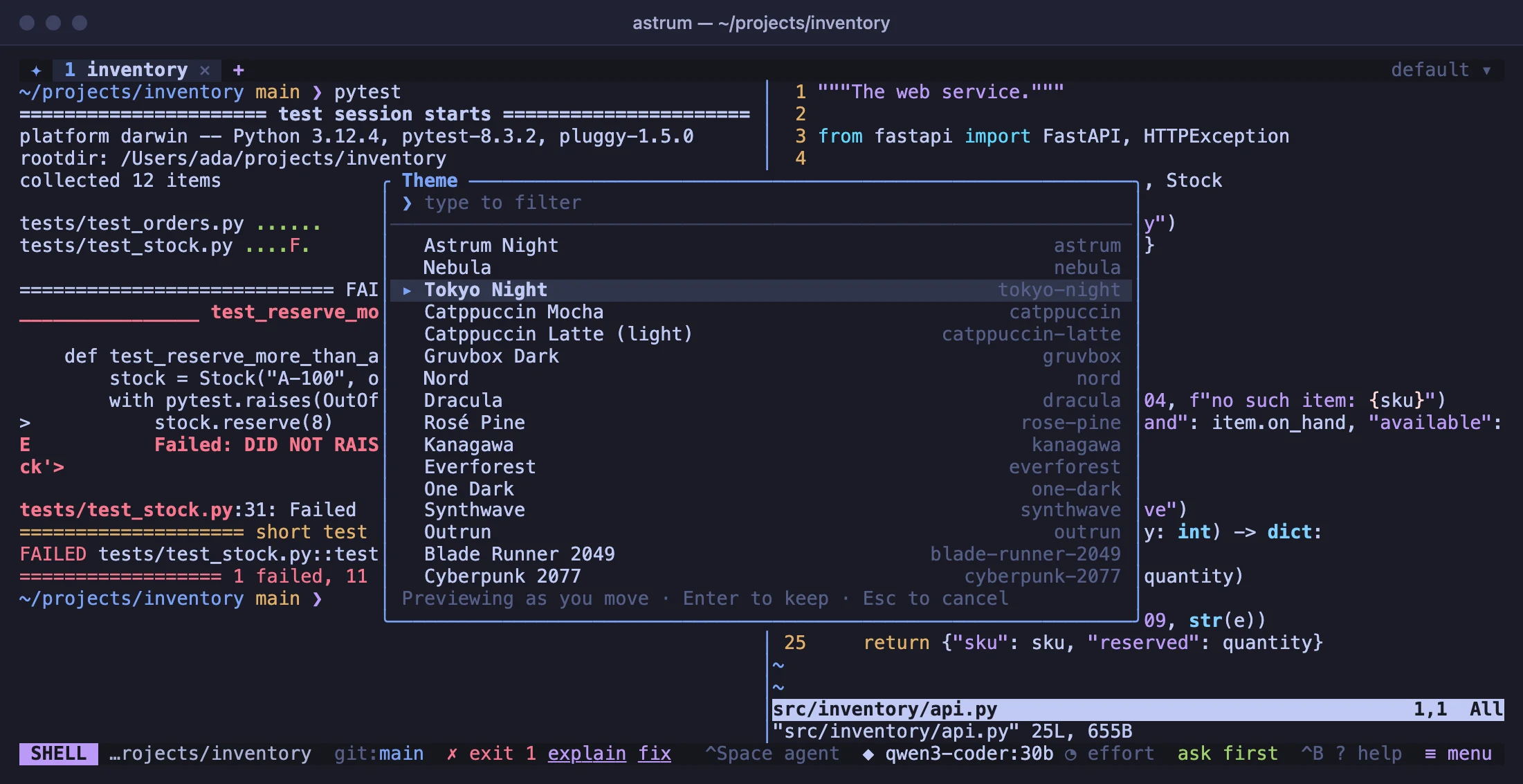
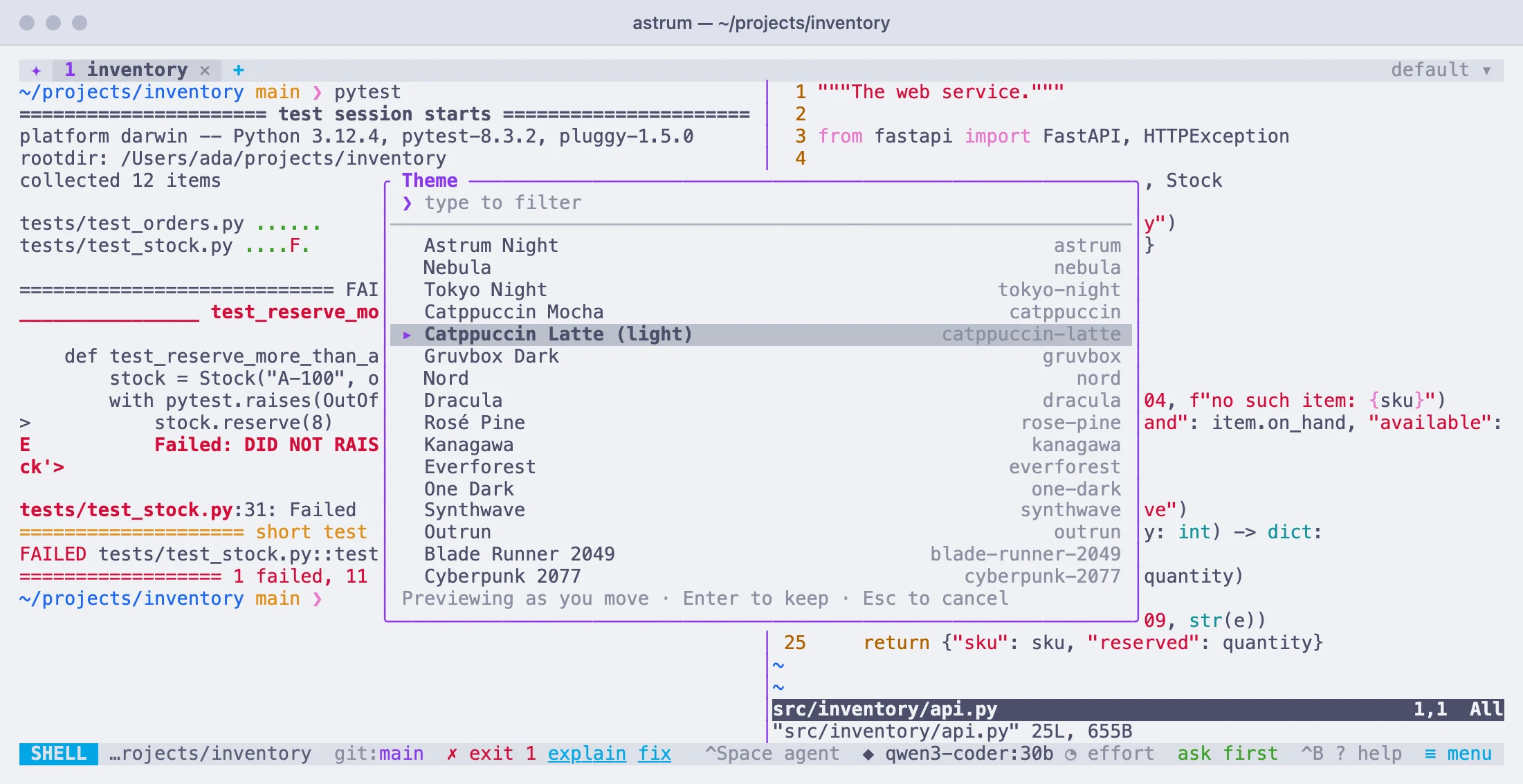
Out of the box Astrum uses your terminal's own colors and changes nothing about how it looks. 21 themes are built in, from calm to neon, shown live as you move through them. Or make one of your own.
Themes →

The list of themes open over a session split into a test run and an editor, with one theme highlighted and the whole screen behind it drawn in that theme's colorsThe list of themes open over a session split into a test run and an editor, with one theme highlighted and the whole screen behind it drawn in that theme's colors
Moving through the list puts each theme on the screen

Install

The installer downloads the file for your machine from the latest release, checks it against the release's checksums, and puts it in ~/.local/bin. It does not use sudo or change anything else.

curl --proto '=https' --tlsv1.2 -fsSL https://raw.githubusercontent.com/robert-mcdermott/astrum/main/install.sh | sh