

The agent
Ask the agent beside your shell. It reads what is there, runs commands in your own shell where you can watch, and asks before it changes things.
Opening the panel
Click the SHELL chip at the left end of the status bar, or press Ctrl+Space. The agent panel opens, the keyboard moves into it, and the chip turns into ✦ AGENT. Click the chip again, or press Ctrl+Space again, to type in the shell; the panel stays open. Clicking in the panel or in a pane moves the keyboard there as well. The status bar always shows which of the two you are typing into.
The panel opens below the shell, or beside it when the terminal is at least 140 columns wide, so that a wide window keeps the shell's full height. Drag the line between them to resize either way. To keep the panel in one place whatever the width, choose ≡ menu → Settings → Agent panel sits, or set it in the config file:
agent_panel = "bottom" # auto (the default) | bottom | sideTo close the panel, click the ✕ at the right end of its top line, or press Esc when nothing is typed in it and the agent is not at work (then Esc stops it). To show or hide it from the keyboard, press Ctrl+B a. Closing the panel does not stop the agent: one that is at work carries on, and its work is there when you open the panel again.
If Ctrl+Space does something else on your machine (macOS uses it to switch keyboard layouts when there are several), agent_key in the config file chooses another key, such as agent_key = "f2".
Asking
Type a request and press Enter. To add a line, press Shift+Enter or Ctrl+J. The arrow keys Up and Down bring back what you asked before.
Until a model has been chosen there is nothing to ask: the model list opens instead, and your question stays in the prompt. Once you have picked a model, press Enter again to send it. Providers and models says how to set one up.
The prompt also takes:
/and a command, such as/modelor/resume. A menu of the commands opens as you type; click one, or choose with Up and Down and press Enter (Tab completes the name). See Slash commands.!and a command, such as!git status, which is run in the shell directly, without involving the model.
Each tab has an agent and a conversation of its own; Several agents at once is about having more than one at work.
A reply is shown with its headings, lists, code and emphasis laid out. A table in a reply is drawn as a table (new in 0.11.0): ruled, each column as wide as its widest cell. In a panel too narrow for it, the longest cells wrap inside their columns, and where there is no room even for that, each row is shown as a short list of its cells under their headings. /copy still gives the reply as the model wrote it.
The agent works in one pane at a time: the one the keyboard was in when you asked. It stays there until it has finished, so you can move to another pane and carry on working while it does. After that it follows the keyboard again.
What it can see
The agent is told which operating system, shell and user it is working for. With every message you send, it is also given:
- the directory the shell is in, and the time;
- whether the shell is at its prompt or busy, and with what;
- the commands you ran yourself since it last looked (up to five of them), with their exit codes and the start and end of their output.
Beyond that it looks for itself, and looking is never asked about. It can read what is on the terminal (the screen and the scrollback), read files, find files by name and search the text of files, all on its own. Its searches skip version-control, dependency and build directories (.git, node_modules, target, .venv and the like), binary files, and files over 2 MB.
Some things are not passed on as they are:
- Secrets in what it reads are replaced with a note first; see Secrets.
- A picture a program printed is not shown to it. It is told
[PNG 640×480]in its place. - Very long output is cut to its first and last 150 lines, so that one command cannot fill the model's context.
Commands run in your shell
When the agent runs a command, it is typed into the pane above the panel, in your own shell. So cd, environment variables and virtualenvs carry over from one command to the next, and you see the real output as it comes. Anything you had half typed at that prompt is cleared first. The panel lists each command as it runs, then marks it ✓, or ✗ with its exit code.
The shell stays yours while it does. You can watch, scroll back, or take over: click the pane and press Ctrl+C to interrupt a command, or type into a program that is waiting for you. If something asks for a password, press Ctrl+Space and type it yourself. The agent is told never to type passwords, and waits for you.
- A long command does not hold the conversation up. After a minute (
command_timeoutunder[agent], in seconds; the agent may ask for up to ten minutes for one command) it is told that the command is still running, which program it is, when it last printed anything and whether it has been using the processor, so it can tell a command that is working from one that is waiting for something. It can then wait longer, type into it, or interrupt it. - A pager. If a command lands in a pager (
less,manand the like, waiting for a key), Astrum closes the pager after its first screen and hands that screen to the agent, with a note to run the command again unpaged. - A busy shell. If the pane is already running something, or its shell has no shell integration, the command runs in a separate background shell instead, and the panel says so. Its output goes to the agent rather than to the pane, and a
cdor a variable set there does not last. - Typing into a program. The agent can type into a program that is running in the pane (answer its question, quit it, press Ctrl+C in it), and is asked about that as it is about a command. It cannot type at the shell's prompt: a command always goes through the same door as every other.
Approvals
When the agent wants to run a command and your settings say to ask, a question appears at the bottom of the panel: the command, the agent's reason for it on a # line underneath, and the choices.
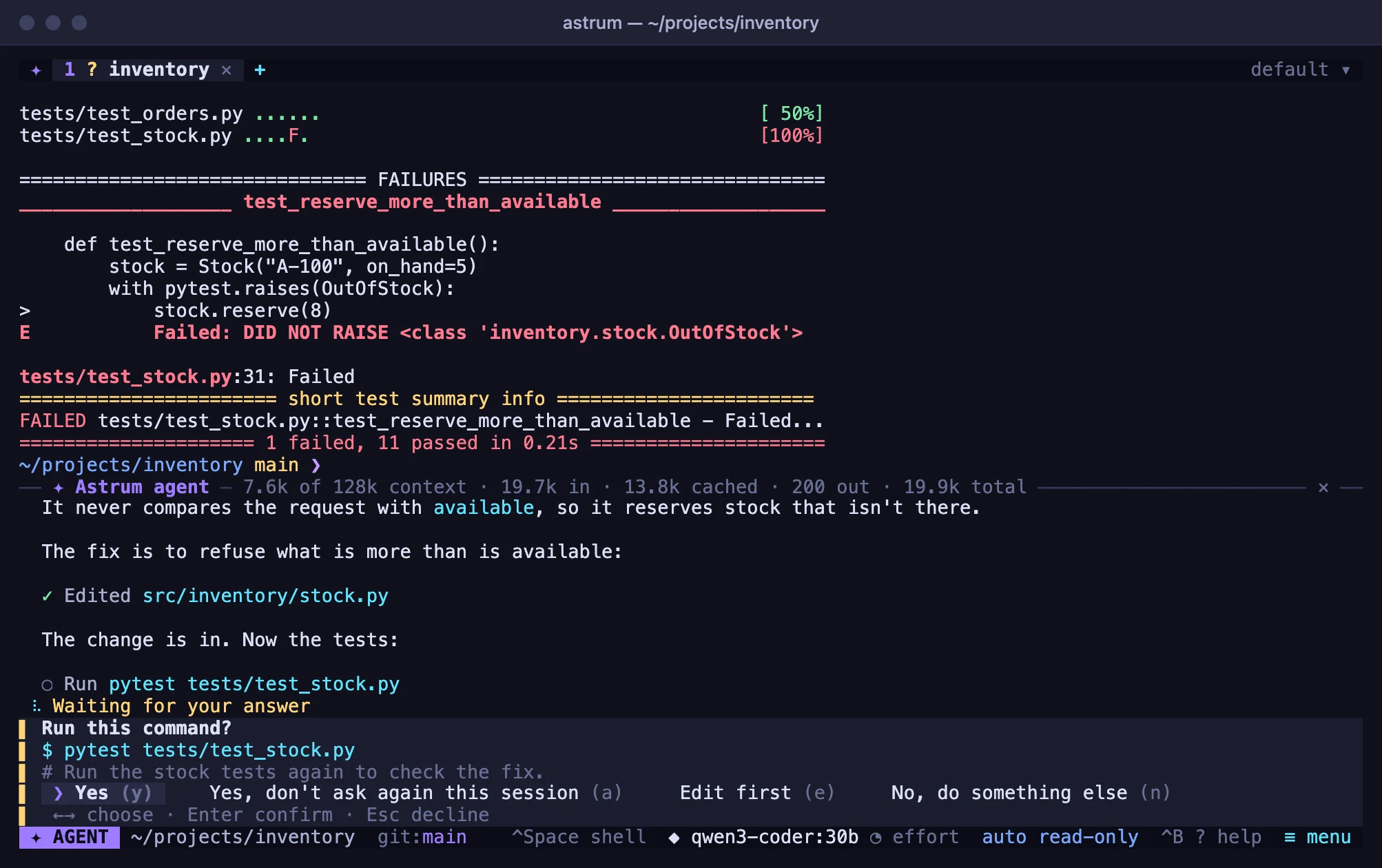
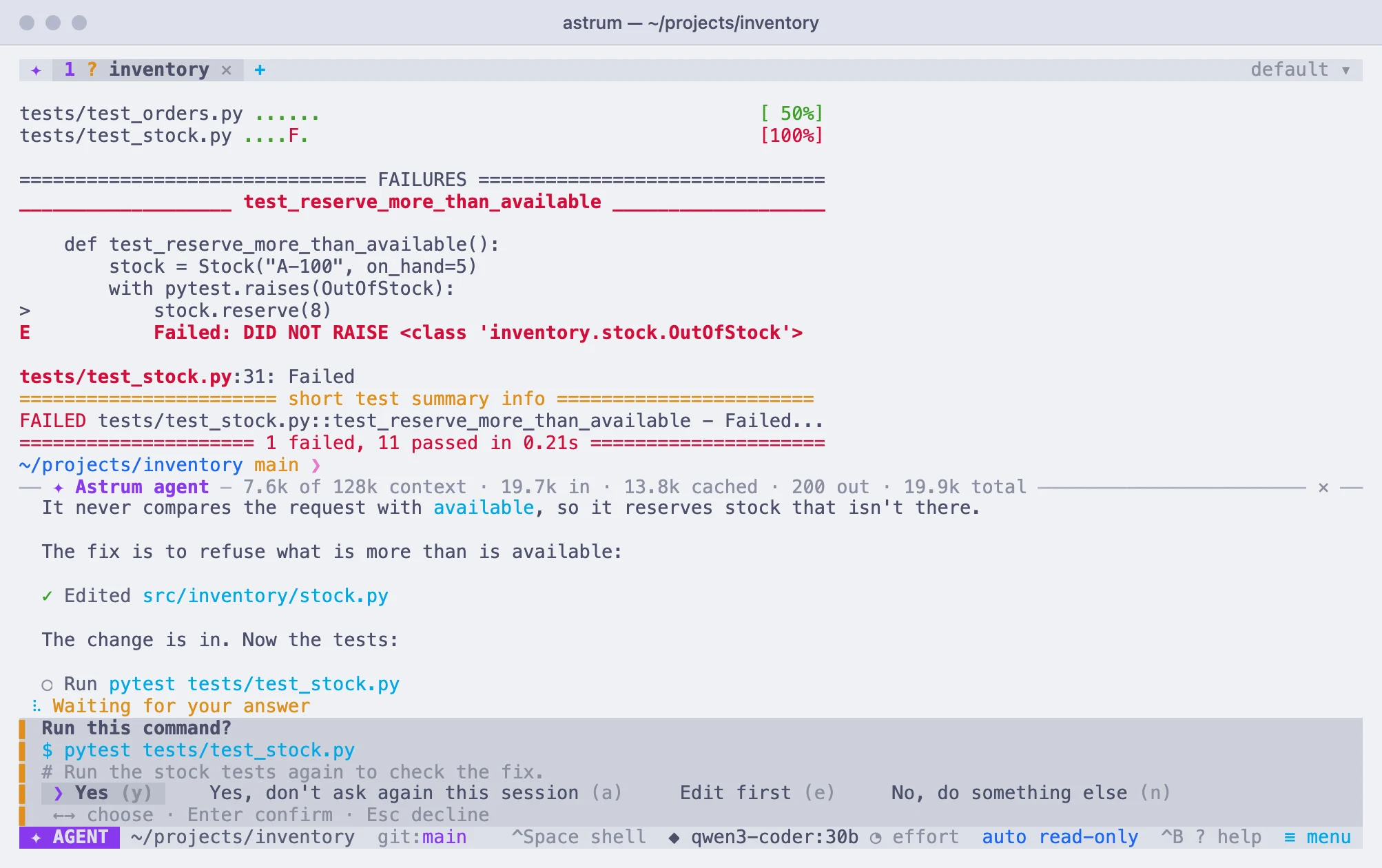
Click a choice, press its letter, or move with the arrow keys (or Tab) and press Enter:
| Choice | Key | What happens |
|---|---|---|
| Yes | y | The command runs. |
| Yes, don't ask again this session | a | The command runs, and this tab's agent stops asking: it works as on autopilot until the session ends, and the status bar says ▶▶ autopilot. Destructive commands still ask. |
| Edit first | e | The command is put in the prompt for you to change. Enter runs what you wrote, Esc goes back to the question. The agent is told that you edited it. |
| No, do something else | n | Nothing runs. Type what the agent should do instead and press Enter, or press Esc to just decline. |
Pressing Esc declines the question as well. Yes, don't ask again this session lasts until the session ends, or until you start a new conversation in the tab, open another one, or choose an autonomy level. A change to a file offers Review each change too; see Changes to files.
What you are asked about is shown whole: a long line is cut into several, and a command or a tool's arguments longer than the question has room for scroll inside it, with the mouse wheel or PgUp and PgDn, down to the line that says it is the end.
A question never takes keys that were meant for something else. If one appears while you are typing, in the panel or in the shell, the keys you were about to press are not taken as its answer: they are ignored for as long as you go on typing, and the question waits until you have stopped for a second, so that a stray y cannot approve a command you have not read. The exception is Ctrl+C, which stops the agent at once.
A question in the tab in front takes the keyboard to the panel. One in another tab marks that tab with ?, and can be answered from the list of every agent; see Several agents at once.
How much it does on its own
There are three levels. Click the level on the status bar to step through them (ask first, auto read-only, ▶▶ autopilot), or choose ≡ menu → Settings → The agent may. In the panel, Shift+Tab steps through them too, and /autonomy ask, /autonomy safe or /autonomy auto picks one.
| Level | In the config file | What it does by itself |
|---|---|---|
| ask first (the default) | autonomy = "ask" | Nothing: it asks before every command and every change to a file. |
| auto read-only | autonomy = "safe" | Runs look-only commands (ls, cat, git status, git log, df, ps and the like) without asking, and asks for anything that changes things. |
| autopilot | autonomy = "auto" | Runs commands, changes files, types into programs and uses the tools of MCP servers without asking. It still asks for destructive commands. |
The level is the session's, and applies to every tab. ask first and auto read-only are remembered for the sessions that follow. Autopilot lasts until the session ends, so that a new session never starts on it by accident; to have it from the start, set autonomy = "auto" under [agent] in the config file.
A command counts as look-only when every program on the line is one that only looks (git log does, git commit does not; find without -delete or -exec; tail without -f), and nothing on the line is written to a file with > or run inside $(...).
Allow and deny lists
Two lists under [agent] in the config file adjust this for particular commands:
[agent]
allow = ["cargo test", "git commit", "npm run *test*"]
deny = ["git push", "terraform apply"]- An entry is the opening words of a command, so
git pushcoversgit push origin main, and*stands for anything. Options that come before a subcommand are looked past:git -C repo pushcounts asgit push. - A command on the allow list runs without asking at any level, provided everything else on the same line is allowed too (or, above ask first, only looks), and nothing is redirected to a file or substituted.
- A command on the deny list is never run, on autopilot included. The agent is told it is ruled out and that it should not get the same effect another way, but say what it wanted to do. The deny list is checked first, and it sees through
sudo,xargs,env,sh -c "..."and the like. - The deny list, and the check for destructive commands below, also apply to what the agent types into a program that is running.
The lists take effect as soon as the config file is saved. They steer an agent that is trying to follow them; they are not a sandbox.
Destructive commands
Some commands are asked about at every level: on autopilot, on the allow list, and after Yes, don't ask again this session. Their question has a red edge and says why ("Careful: this runs with elevated privileges."), and does not offer Yes, don't ask again this session. They are these, alone on a line, after && or ;, or in a pipeline:
sudo,su,doasandpkexec;rm -ron a broad path (/,~,.,..,*, or a top-level directory such as/usr), andrm --no-preserve-root;chmod,chownandchgrpwith-Ron such a path;- disk and filesystem tools:
mkfs,fdisk,parted,wipefs,newfs,diskutilerasing or repartitioning a disk,ddwriting to a device, and output redirected onto a disk device; git push --force(or-f,--force-with-lease,--mirror),git reset --hardandgit clean -f;- a download piped straight into a shell or an interpreter, as in
curl … | sh; shutdown,reboot,halt,poweroff,crontab -r, and a fork bomb.
Changes to files
The agent changes files with tools of its own, not with an editor, and a change is shown as a diff before anything is written: the lines going out in red, the lines coming in green, with three unchanged lines around each change. The question says what it is: Create a new file, Edit part of one, or Rewrite one whole. A long diff scrolls with the mouse wheel, or with PgUp and PgDn.
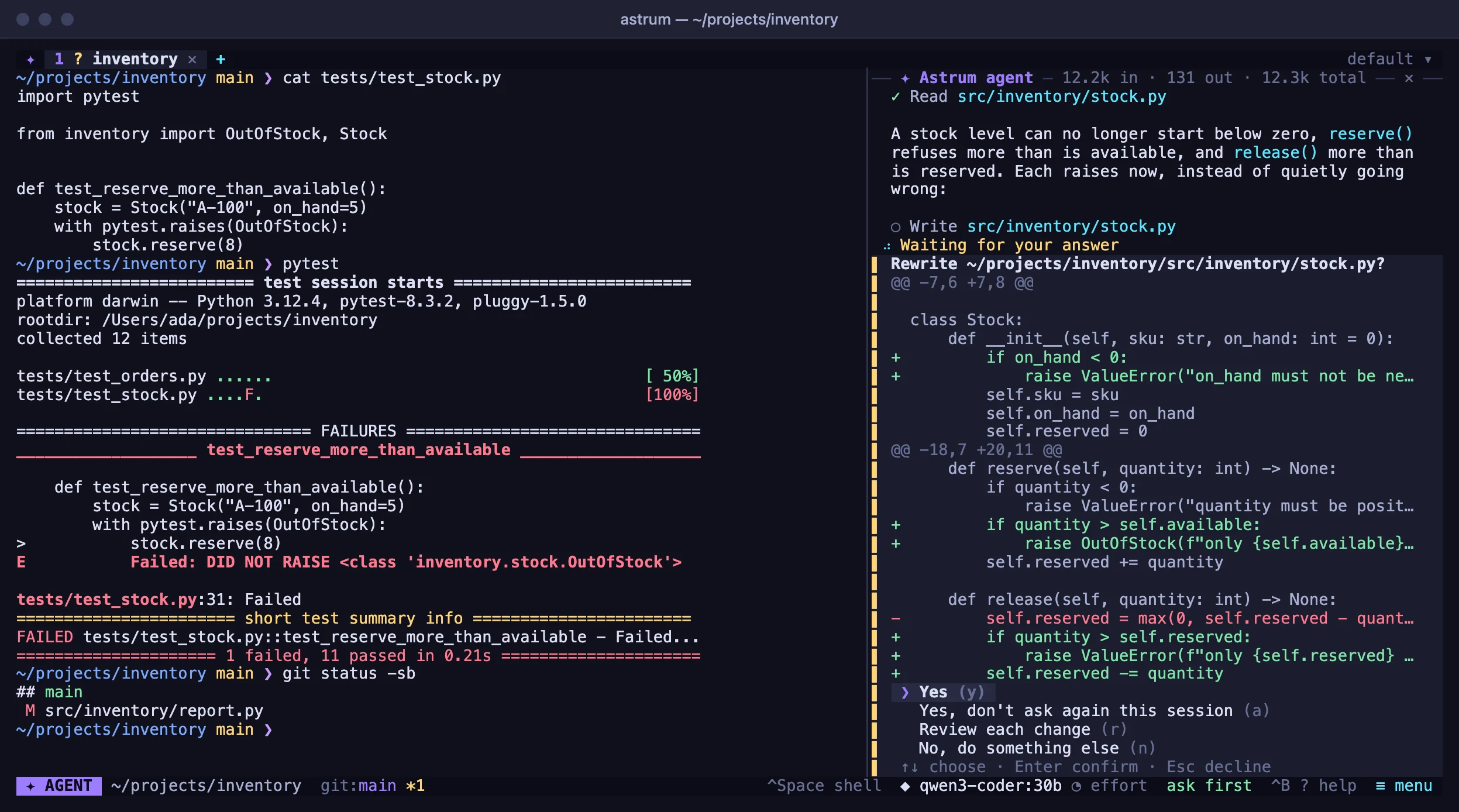
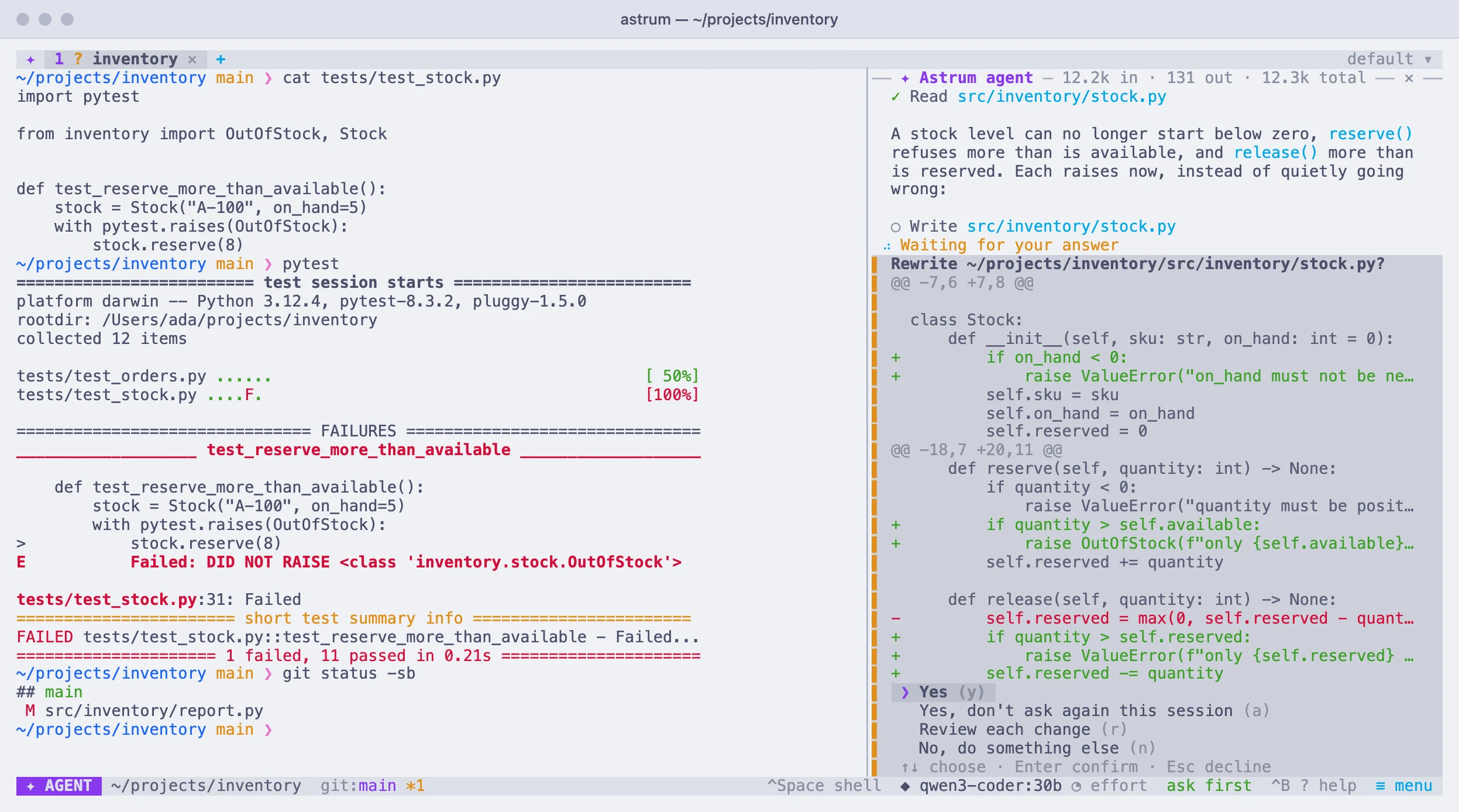
When a change touches several places you can also choose Review each change (r) and go through them one at a time:
- Apply this change (y)
- Skip it (s)
- Cancel the whole edit (n)
The file is written once you have answered them all, and the agent is told which parts you declined and that it should not make them some other way. If the file changes on disk while the question is open, nothing is written and the agent is told to look again.
On autopilot, changes are written without the question. With the agent taken into a shell on another machine there are no file tools: it changes files with commands there, and you approve those as commands (see Other machines).
Secrets
What the agent gathers for the model (the output of commands, the files it reads, what is on the terminal, what MCP tools return) is checked for secrets first, and each one is replaced with a note such as [redacted: GitHub token]. Your terminal still shows the real output; only the copy sent to the model changes, and the panel says how many were hidden. It looks for:
- keys and tokens with a recognizable shape: cloud and source-hosting access keys, API keys, chat and payment service tokens, private key blocks, signed web tokens;
- passwords in URLs, and credentials in
Authorizationheaders; - lines that set something named like a secret (
DB_PASSWORD=...,--api-key=...), as in anenvlisting or a.envfile; - the API keys Astrum itself is using for your providers, the tokens of your MCP servers, and the AWS keys in its environment, anywhere they appear.
The agent is told that this happens, and to work with where a secret lives (a file, a variable) rather than with its value.
It is deliberately cautious about code, so that token = get_token() stays readable, which means a secret that looks like an ordinary word in an ordinary assignment can get through. Treat it as a safety net, not a guarantee. What you type to the agent yourself is sent as you wrote it.
To turn it off, choose ≡ menu → Settings → Hide keys and passwords from the model, or set redact_secrets = false under [agent].
Asking from the shell prompt
You do not have to go to the panel to ask something. At the shell prompt, start a line with # and a space:
# why is this directory so largePress Enter and the line goes to the agent instead of the shell: it is erased from the prompt, the panel opens to show the agent's work, and the keyboard stays in the shell. If the agent is already busy, the question waits for its next step, like anything typed in the panel.
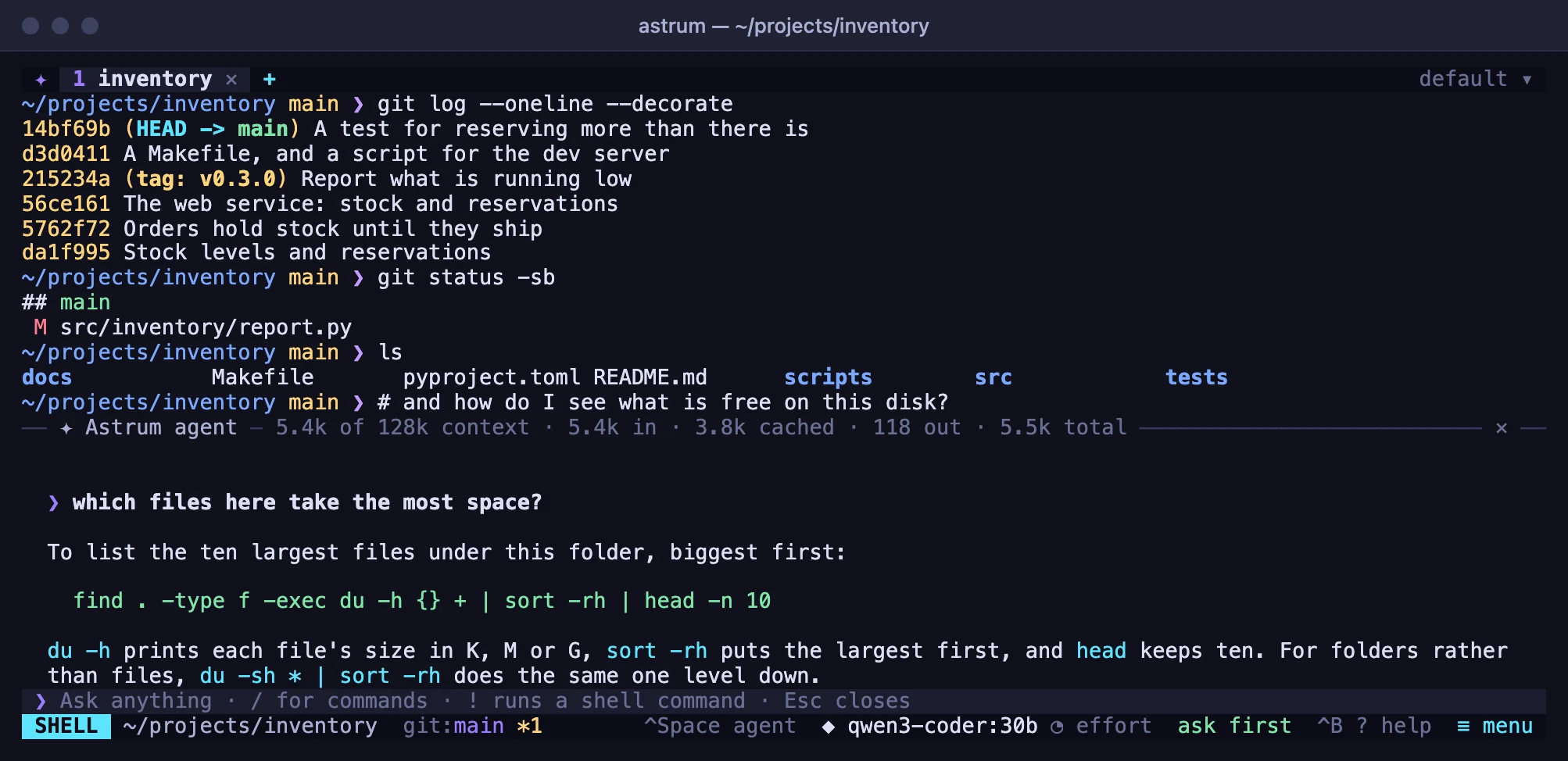
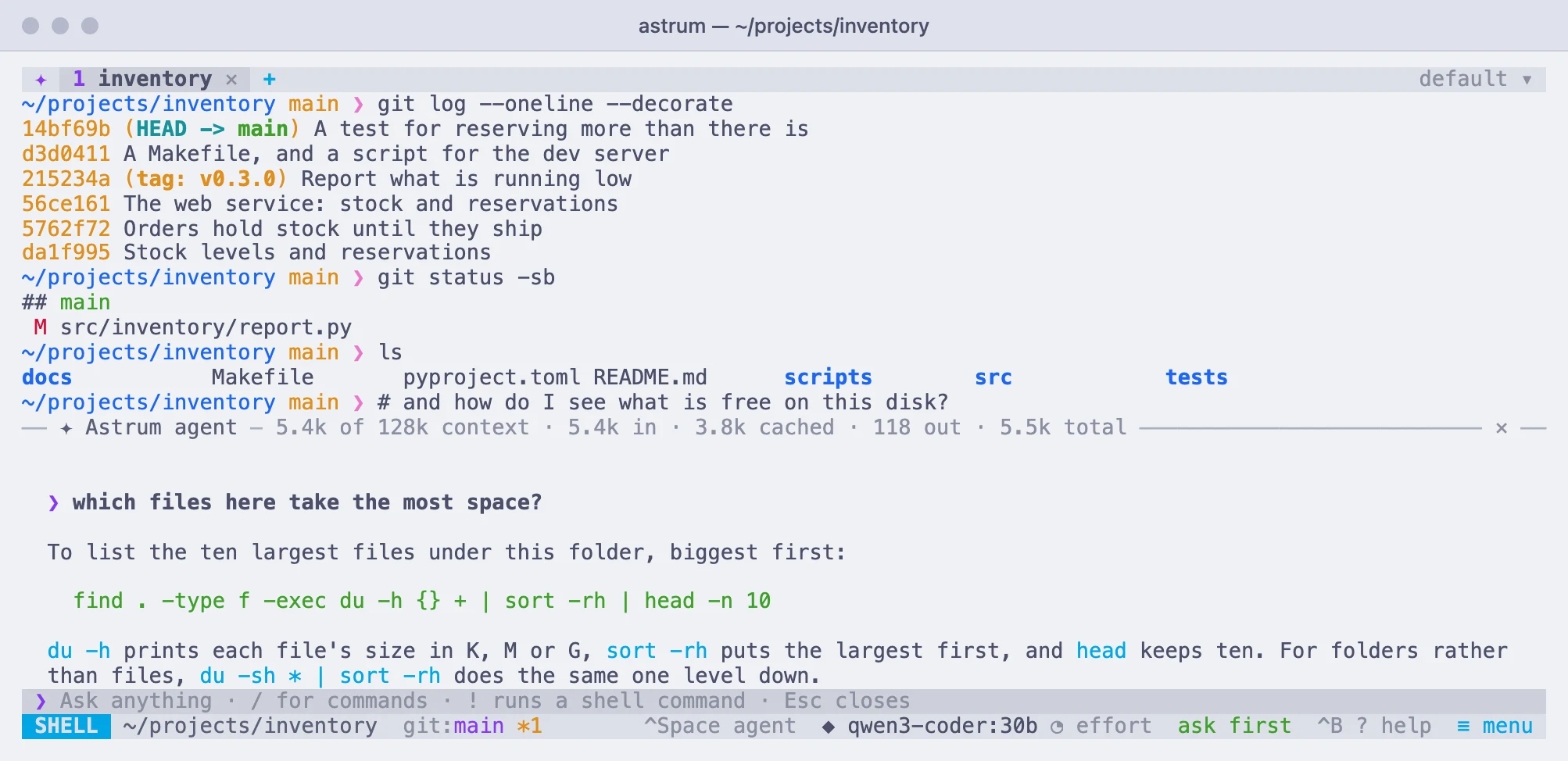
This needs the shell integration (zsh, bash and fish have it), and it applies only to a line you type at a prompt, not to input for a program that is running. Lines such as #!/bin/sh or ## are left alone. To turn it off, choose ≡ menu → Settings → Ask from the shell prompt with "# question". In the config file, ask_prefix under [agent] chooses another prefix, and ask_prefix = "" turns it off.
Astrum works out what you typed from the keys you pressed, including corrections made with Backspace and the arrow keys. For a line the shell had a hand in (recalled from history, or completed with the Tab key) it reads the line from the screen instead, which works when the prompt has not changed since you began typing and nothing follows the cursor. If it cannot be sure, the line goes to the shell as usual. The SHELL chip and Ctrl+Space always work.
Plain language
With Plain-language lines at the prompt go to the agent turned on in the settings (natural_language = true under [agent]), a line that reads as plain language goes to the agent without any prefix. That is a line of at least three words, with none of the shell's own punctuation (|, &, ;, <, >, $, =, * and the like), that starts with a word such as "how", "why", "what", "can" or "please", and either ends in a question mark or does not start with the name of a program on your machine. It is off by default because it is a guess. When it guesses wrong, start the line with a space and the shell runs it as typed.
Explain, fix and watch
When a command fails, the status bar shows its exit code (✗ exit 1) and two offers, explain and fix. Click one, or press Ctrl+B e or Ctrl+B f. The agent is given the command, its exit code and its output. explain has it tell you what went wrong without changing anything; fix has it put the cause right and run the command again to check, asking first as your autonomy level requires. The offer goes away once the agent has seen that failure or you run something else, and it is not made for a command you interrupted yourself with Ctrl+C. /explain and /fix do the same from the panel, and work on the last command even when it succeeded. Both are in ≡ menu as well.
While a command of your own is running, the status bar offers watch (or Ctrl+B o, ≡ menu → Watch the running command, or /watch). The agent then follows that command and tells you how it went when it ends, so you can leave a long build or download and be told the result. /watch then run the tests adds what to do afterwards. It does not interrupt your command, and types into it only when it is plainly waiting for an answer that is safe to give (asked about as usual). Stopping the agent leaves the command running.
Adding to a task while it works
You can keep typing while the agent works. What you send is held just above the prompt, marked ◷, and handed to the agent at its next step with the result of whatever it was doing, so you can correct or add to a task without stopping it. Backspace on an empty prompt takes the last waiting message back to change it.
Stopping it
To stop the agent, click in the panel and press Esc (or Ctrl+C), as the line above the prompt reminds you while it works. A command it started is interrupted too; a command you started yourself, which it was only watching, is left running. Messages still waiting go back to the prompt, and what had not finished is marked in the panel. The conversation stays: ask again and it carries on from there.
A turn also stops by itself after 60 steps, each a request to the model and the tools it asked for, and says so. Say "continue" to let it go on.
When the provider is busy
New in 0.11.0. A request that fails in passing is made again without your asking: one the provider turns away because it is busy or you are over a rate limit, one that meets an error on the provider's side, or one whose connection drops. The panel says what it is waiting for, counting down, as in Rate limited: trying again in 8 s.
- It tries up to four more times, waiting 2, 4, 8 and then 16 seconds, or as long as the provider asks, up to a minute. After that the error is shown as before.
- A reply that was cut off part of the way through is asked for again once. What had been shown of it is taken back, so the reply appears once, whole. No command is run twice: a tool runs only when the reply asking for it has arrived complete.
- Esc stops the wait, as it stops anything else.
- What waiting cannot mend is not tried again: a wrong key, a model the provider does not know, a request it calls bad or declines, an account that has run out of credit, an address that leads nowhere. A server on your own machine that does not answer is most likely not running, and is not waited for either.
Conversations
Each tab has its own conversation, and conversations are saved as they happen, so they outlive the session: after astrum kill, a reboot or a crash, start Astrum again and pick up where you left off. A restored tab opens with the conversation it had; these commands reach the others.
/resumereopens the most recent conversation from the directory your shell is in. If there is none from there, it reopens your most recent one from anywhere and says so./resume wordsdoes the same among the conversations whose first prompt contains those words./conversationslists every saved conversation, newest first, each with its first prompt, how long ago it was used and its directory (or the tab it is open in). Type to filter, click one or press Enter to open it, and press Del twice to delete one. A conversation that is open in a tab cannot be deleted until it is cleared there./clearstarts a new conversation; the old one stays in the list.
A resumed conversation continues in the tab's current shell and directory. If it was cut off in the middle of a turn, whatever had not finished is marked as interrupted and the agent is told so.
Conversations are stored in ~/.local/share/astrum/conversations/, one file each, readable only by you. They contain what you asked, what the agent replied and the output of the commands it ran. A conversation that has not been used for 90 days is deleted. To keep nothing on disk, choose ≡ menu → Settings → Keep conversations so they can be resumed. In the config file:
[agent]
save_conversations = true      # false keeps nothing on disk
keep_conversations_days = 90   # 0 keeps them forever
Long conversations
A model can only take in so much at once, and every request sends the whole conversation again, so a long one gets slow and expensive and in the end does not fit. Compacting fixes that: the model writes a summary of the conversation (what you asked for, what was done, the current state, what comes next) and the summary takes the conversation's place.
/compactdoes it now./compact keep the exact error messagestells the summary what to take particular care over.- It also happens by itself when the conversation reaches 80% of the model's context or 200,000 tokens, whichever comes first, even in the middle of a task, and the agent carries on from the summary. If a provider refuses a request as too long, Astrum compacts and sends it again.
When you ask for it with /compact, the summary is shown in the panel so you can see what the agent kept. When it happens by itself, one line says so, and /summary shows the summary whenever you want to read it. Either way, everything above stays in the panel for you to scroll back to; only what is sent to the model changes. Rules files are not part of the conversation and are unaffected.
The 200,000-token cap is there because every message sends the whole conversation again, so a model that can take a million tokens gets slow and expensive long before it is full. To leave compacting to you, turn off ≡ menu → Settings → Summarize long conversations when they fill up. In the config file:
[agent]
auto_compact = true      # false: only when you ask with /compact
compact_limit = 200000   # 0 removes the cap, leaving only the 80% rule
The 80% rule relies on Astrum knowing how much context the model takes; see Context windows.
Tokens
The top line of the agent panel shows, for the conversation in that tab, how full the model's context is and how many tokens the conversation has used: sent to the model (in), how much of that the provider served from its prompt cache (cached), received (out), and the total. For example, 12k of 200k context · 85k in · 60k cached · 3k out · 88k total. On a narrow panel it shows as much of that as fits.
/usage gives the same breakdown in full, with the model and how many requests there were. The totals are saved with the conversation. Astrum does not turn them into a cost: prices differ by provider and change, so check your provider's own usage page for that.
Slash commands
Type / in the panel for the menu. The commands:
| Command | What it does |
|---|---|
/model | Choose the provider and model; /model provider/name picks one directly. See Providers and models. |
/effort | Choose how hard the model thinks; /effort high picks a level directly, /effort default leaves it to the model. See How hard the model thinks. |
/theme | Choose a color theme, with a live preview. |
/autonomy | Step to the next autonomy level; /autonomy ask, safe or auto picks one. |
/clear | Start a new conversation. The old one stays saved. |
/resume | Reopen the most recent conversation from this directory; /resume words one whose first prompt has those words. |
/conversations | Browse the saved conversations, to open or delete one. |
/explain | Explain the last command, or why it failed. |
/fix | Work out why the last command failed, and fix it. |
/watch | Follow the command that is running and report when it ends. |
/compact | Summarize the conversation so far to free up context. |
/summary | Show the summary a compacted conversation continues from. |
/usage | The tokens this conversation has used. |
/copy | Copy the agent's last reply to the clipboard. |
/here | Work in the shell this pane has reached: over ssh, in a container, after sudo -s. See Other machines. |
/ssh | Open a tab on another machine: /ssh host. |
/mcp | MCP servers: how each is doing, its tools and its log. See MCP servers. |
/skills | The skills there are, and turning one off or on. See Rules and skills. |
/agents | Every tab's agent at a glance. |
/providers | The providers that are configured, and where each one's key comes from. |
/key | Store a provider's API key in the system's password store. |
/reload | Read the providers again from the config file and the password store. |
/rename | Rename this tab; /rename alone gives it back its automatic name. |
/config | Say where the config file is, and write a commented one if there is none. |
/settings | Open the settings screen. |
/help | The keys and commands. |
Each skill is a command as well, under its own name: /release-notes for 0.6.0 has the agent use the skill release-notes for what follows. The menu lists the skills after the commands.