

Sessions that come back
Shells that keep running when the window closes, sessions that bring their tabs back after a stop or a reboot, and the commands that manage them.
Your shells keep running
The first time you run astrum, it starts a server in the background for the session. The server owns the shells, runs the agent and draws everything; the astrum in your window only passes your keys and mouse on to it and shows what it is sent back. Closing the window ends only that. The server and your shells carry on, and so does whatever is running in them: a build, a download, an editor you left open, the agent in the middle of a task.
Run astrum again, in any terminal window, and you are back where you were: every tab, split, running program and line of scrollback.
The same goes for a terminal that goes away by itself: a terminal app that quits, or an SSH connection you ran astrum over that drops when the laptop is closed. The session does not notice; run astrum again once you are back.
Leaving and coming back
| Do this | With the mouse | With the keyboard |
|---|---|---|
| Leave, keep everything running | close the window, or ≡ menu → Detach (keep everything running) | Ctrl+B d |
| Detach every window from the session | close each window | Ctrl+B D |
| Come back | astrum |
When you detach, Astrum leaves a line in your terminal to say so:
[astrum: detached · session `default` keeps running · run `astrum` to return]astrum inside a session does not start another one inside it: it says you are already inside Astrum, and that a new tab is the prefix key and then c. To go to another session, use the list of sessions (below). (Setting ASTRUM_ALLOW_NESTED=1 runs one inside another all the same.)
Going to another session
Click the session's name at the right-hand end of the tab bar (default ▾, or the name you gave it), choose ≡ menu → Sessions…, or press Ctrl+B S. The list shows:
- Back to the session this terminal was in before, if it came here from one;
- each running session: its tabs, whether a terminal is attached to it, and how long it has been up;
- each stopped session that would come back if started, and when it was saved;
- New session…, which asks for a name, and a folder if not the one you are in (
api ~/src/api).
Sessions whose tabs are in the folder, or the git repository, you are in are listed first.
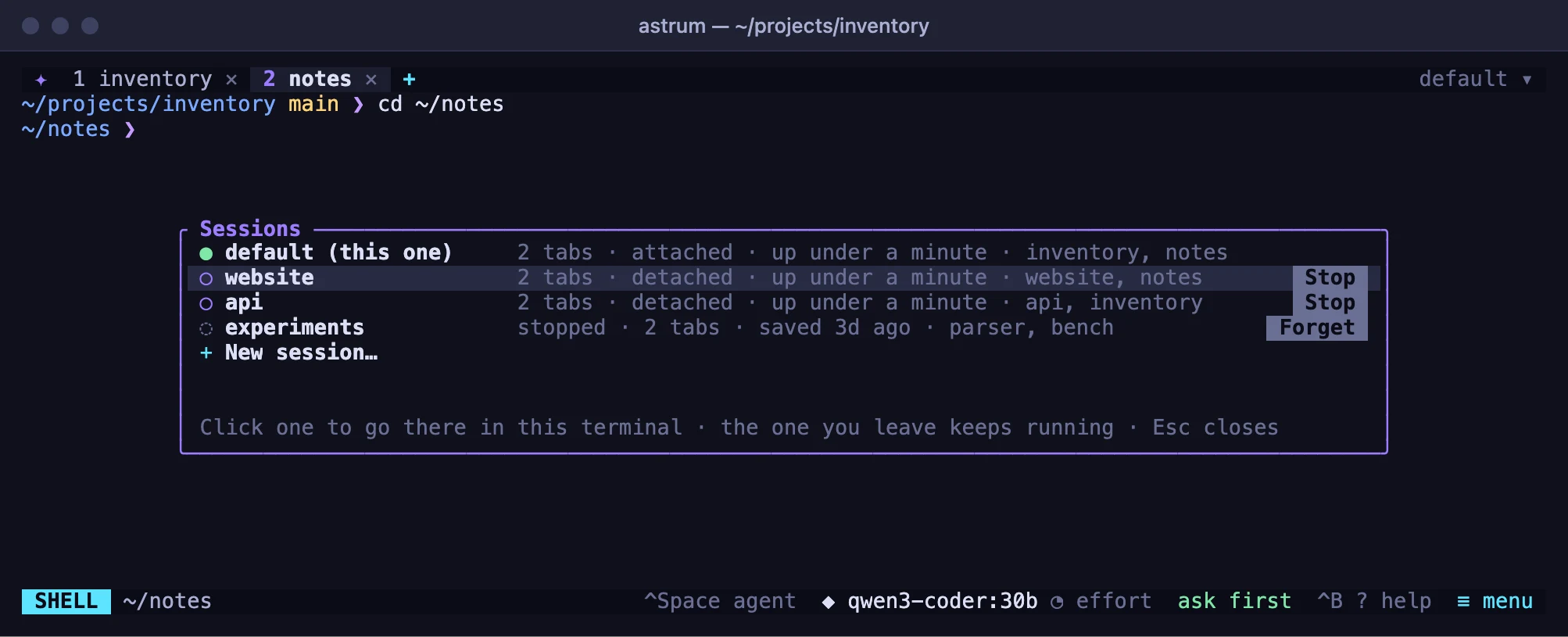
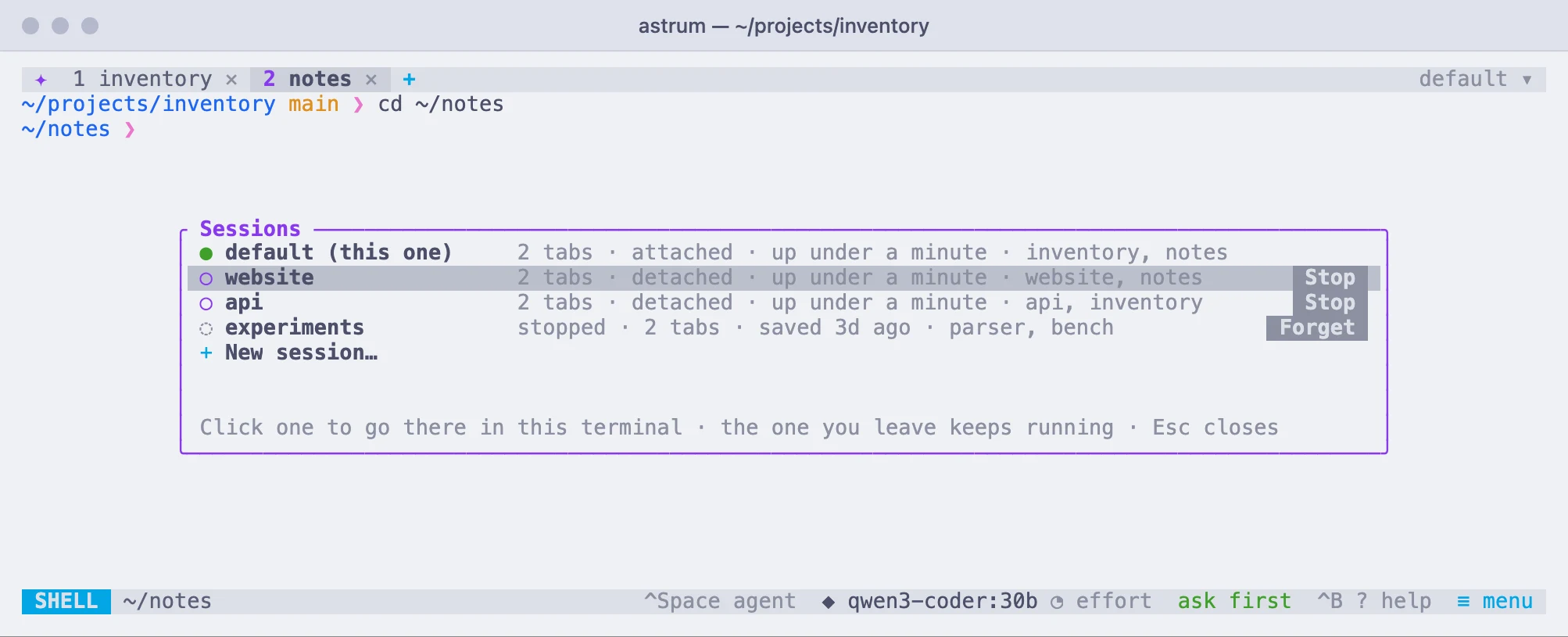
Click one (or choose it with Up and Down and press Enter) and this terminal goes there: it lets go of this session and attaches to that one, in the same window. The session you left keeps running, and so does every other terminal attached to it; only the one that asked goes. A stopped session is started, and comes back as it was; a new one starts with a tab in its folder.
A running session's row has a Stop button, and a stopped one's a Forget button (or press Del). Each asks first: stopping ends that session's shells and saves it to come back, as astrum kill -s does; forgetting deletes what it saved. The session you are in is stopped by closing its tabs, or with astrum kill from outside it.
Named sessions
Unless you say otherwise, you are in the session called default. -s (or --session) names another, and each session has its own tabs, its own server and its own saved state:
astrum -s workThe first astrum -s work starts the session; after that it attaches to it. A name is made of letters, digits, - and _, up to 40 of them. A session shows its name at the right-hand end of the tab bar, where a click lists the others.
-s goes with every command, so the commands below work on any session: astrum kill -s work, astrum reload -s work, astrum service install -s work. All sessions share one config file.
Listing sessions
astrum lslists the sessions that are running, and those that are stopped but would come back if started:
default          3 tabs  attached  up 2h14m  [src, logs, ~]
work             1 tab  detached  up 25m  [api]
notes            2 tabs  stopped   saved 3d ago  (`astrum -s notes` brings them back)
For a running session: how many tabs it has, whether a terminal is attached to it right now, how long it has been up, and the names of its tabs. For a stopped one: when it was last saved, and the command that brings it back.
Stopping a session
astrum killstops the default session: its shells are closed, and the programs running in them end. Its tabs are kept, and come back the next time it is started (see What comes back). -s name stops another session, and --all stops every session that is running.
To stop a session and discard its saved tabs as well, so that the next start is a clean one:
astrum kill --forget--forget also works on a session that is already stopped, and discards what was saved of it. astrum kill --all --forget stops every session and discards what is saved of every session, stopped ones included.
If the session runs as a login service, the service manager starts it again as soon as it stops, so astrum kill becomes a restart, and its tabs come back.
What comes back
While a session runs, Astrum keeps on disk what it would take to rebuild it. It is written about fifteen seconds after anything changes, and once more when the session stops, so a crash loses little. After astrum kill, a reboot, a crash or an upgrade, starting the session again brings back:
- its tabs, in their order, with their names, and the tab that was in front;
- how each tab is split into panes, which pane the keyboard was in, and whether one was zoomed;
- the directory each shell was in;
- what each pane showed, and the scrollback it remembered;
- each tab's conversation with the agent, and whether the agent panel was open;
- tabs on other machines, which look for their shells there again (they may well still be running).
Each pane gets a fresh shell, in its old directory, under what it showed before. A line marks where the restored part ends:
restored · as it was on 2026-11-11 at 10:42The programs that were running are not started again by themselves. Under what a pane showed, a second line says what was running there, and the status bar offers to start it again:
was running: npm run devClick run again on the status bar (or press Ctrl+B !) and the command is typed at the fresh prompt, in the pane's old folder, and sent: nothing ever runs without that click. The offer goes once you type anything else in the pane. The command line is kept as the shell integration saw it typed, with its arguments; without shell integration, only the program's name. It is kept with what was on screen, so only with restore = "all" (the default). Nothing is kept from a shell inside the pane's own (after ssh or sudo -s): what ran there is not to be run here. run again types only at an empty prompt. A command line with something in it that looks like a secret (a token, a password given as an option) is not kept at all. A pane that was inside a full-screen program when the session was saved comes back with the scrollback from before that program started.
What is saved lives in ~/.local/share/astrum/sessions/, a folder for each session, readable only by you. With restore = "all" it includes whatever was on screen, which may include things you would rather not keep on disk; see below.
How much is kept
restore in the config file, or ≡ menu → Settings → A stopped session comes back with, chooses how much a stopped session brings back. On the settings screen, click the row to step through the three.
restore | The settings screen says | What is kept |
|---|---|---|
"all" (the default) | its tabs and what was on screen | everything in the list above |
"layout" | its tabs only | the tabs, their names, their panes and their directories, but nothing of what was on screen: none of it is written to disk |
"off" | nothing | nothing: a stopped session starts afresh |
restore = "layout"A change applies to what is on disk too: changing to layout removes what was saved of the screens, and with off, nothing of the session is kept once it stops.
When a session ends for good
A session is over when its last shell closes: exit in the last pane of the last tab, or closing the last tab. Nothing of it is kept, the terminal says [astrum: session ended], and the next astrum starts a clean session. A machine shutting down, which ends every shell at once, is not taken for that: the session is kept, and comes back.
To stop a session and discard its tabs without closing each one, use astrum kill --forget.
Several terminals at once
A session can be open in several terminal windows at the same time, each with its own tab in front, its own menus, and its own size. Run astrum (with the same -s name) in each. Two windows on the same tab share it, and its shells take the size of the window that used it last. Tabs and panes has the details.
Detaching with Ctrl+B d (or closing the window) leaves only the window you are in, and the others stay. Ctrl+B D detaches every window at once, which is handy when you have left one open somewhere else. astrum ls says attached while any terminal is attached.
A terminal that only watches
To show a session to someone, or to keep an eye on one from another screen, without any risk of typing into it:
astrum -s work --watchThat terminal sees the session and sends nothing to it. Nothing typed, pasted or clicked there reaches a shell, the agent, or a menu; its status bar says watching · read only. It can look at another tab than the one you are on (a click on the tab, or Ctrl+B n, p and 1 to 9), and leaves with Ctrl+B d or by closing its window. No tab is ever sized for it: it shows each tab at the size of the terminal that is using it. It does not scroll a pane's history, which would scroll it for you too, and looking at a tab from it does not clear what that tab was waiting to tell you. It is sent the picture and nothing else: not what you copy, and no bells or notifications.
--watch starts nothing: the session has to be running, and to be 0.8.0 or later.
After an upgrade
A session that was running when you upgraded keeps running the version it was started with. astrum upgrade moves it onto the new one without stopping anything in it (and, if a newer release is out, offers to install that first): every shell and program carries on, and terminals attached to it come back by themselves. The status bar offers the same when a newer Astrum is installed than the session runs.
astrum upgradeUntil then, the new astrum can still attach to it, list it and stop it, but anything new in the release is not there. See Install for what a move carries, and for sessions older than 0.8.0, which are restarted instead.
Starting a session at login
Normally a session's server is started by the first astrum that asks for it. The login service has the system start it when you log in instead, and start it again if it ever stops.
Where things are
| What | Where |
|---|---|
| Each running session's socket, and its server's log | /tmp/astrum-<uid>/ (your user id): default.sock, default.log |
| Saved sessions | ~/.local/share/astrum/sessions/ |
| Saved conversations with the agent | ~/.local/share/astrum/conversations/ |
ASTRUM_RUNTIME_DIR puts the sockets elsewhere, and ASTRUM_DATA_DIR the saved sessions and conversations. If something looks stuck, astrum ls shows what is running, astrum kill stops a session, and the server's log says what it was doing. Troubleshooting has more.